

Electricians set up a Google Business Profile by adding their business on Google Maps, entering the name exactly as it’s used in real life, choosing Electrician as the category, setting the areas they cover and verifying the profile with whichever method Google offers. Electrician SEO Pro’s advice is not to stop there: add your services, honest opening hours, real photos and a proper description, because a bare-minimum profile rarely wins jobs.
Google Business Profile (GBP) – formerly known as Google My Business – is one of the most important tools for electricians who want to get found locally.
It’s what gets you seen in Google Maps, local searches, and on mobile when someone types local keywords like “electrician near me.”
This guide shows you how to set yours up properly, get verified fast, and optimise it so you dominate:
I’ll be going through:
- What Is Google Business Profile?
- Why You Need a GBP as an Electrician
- How to Set Up Your Google Business Profile (From Scratch)
- How to Claim or Reclaim an Existing Listing
- How to Request Access to a Listing
- How to Optimise Your Google Business Profile (Properly)
And much more.
Got your coffee? Great, let’s get stuck in.
What Is Google Business Profile?
Google Business Profile (GBP) is your free business listing on Google, and it’s one of the biggest weapons in your local marketing arsenal.
It’s what shows up when someone Googles your business name:
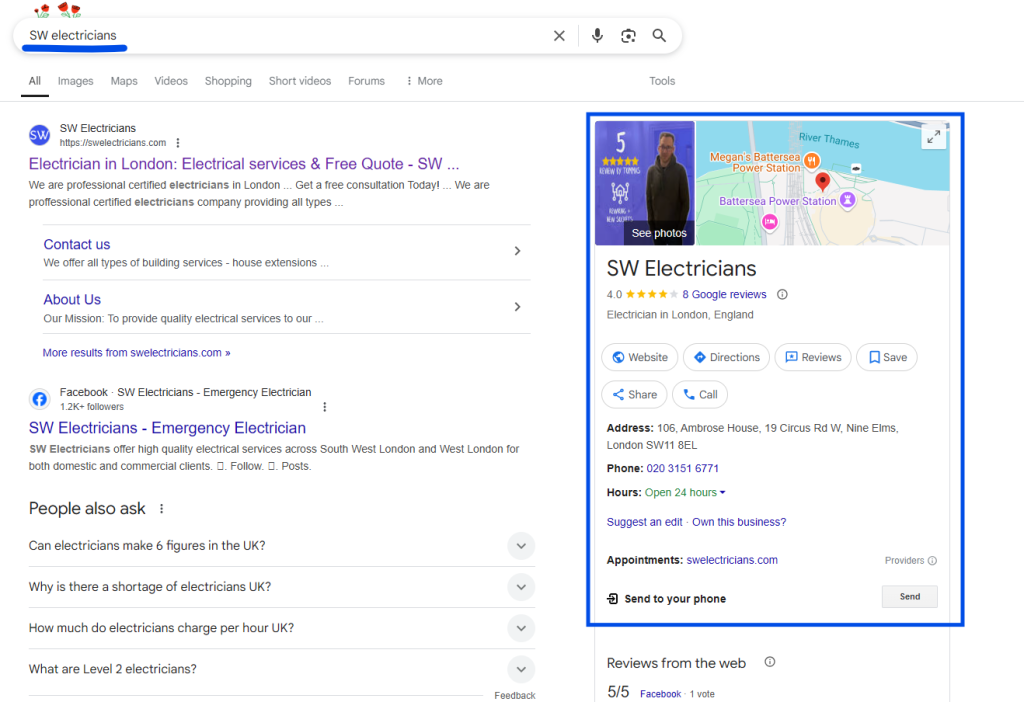
Or when they are looking for an electrician in your service area, your GBP has the potential to appear in the busniess local pack:
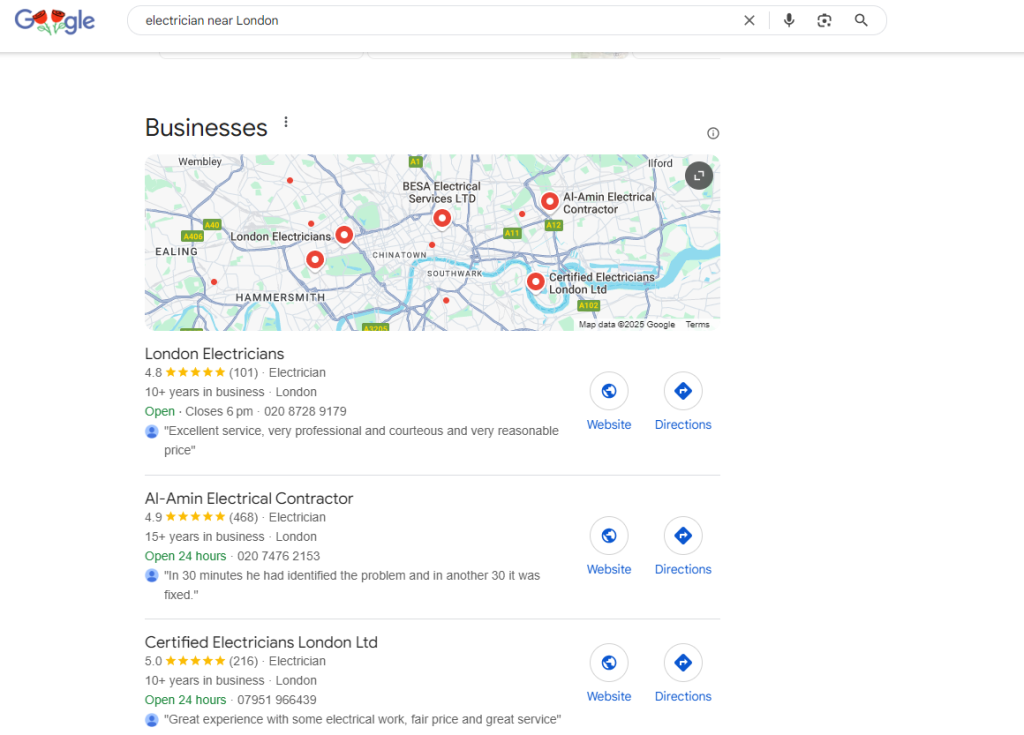
This ONLY happens if you’re optimised correctly.
It also controls how you appear on Google Maps, voice search, and mobile: basically anywhere your next customer is looking.
And don’t worry, you don’t need a physical shop to have one; if you’re a mobile electrician working out of a van, you can still set one up.
Great, but what are the benefits?
Why Every Electrician Needs a Google Business Profile
If you want to get found on Google by locals looking for an electrician, having a Google Business Profile is non-negotiable.
Here’s 4 reasons why:
1. You Show Up in the “Map Pack”
Ever Googled “electrician near me” and seen that little map with 3 listings underneath it?
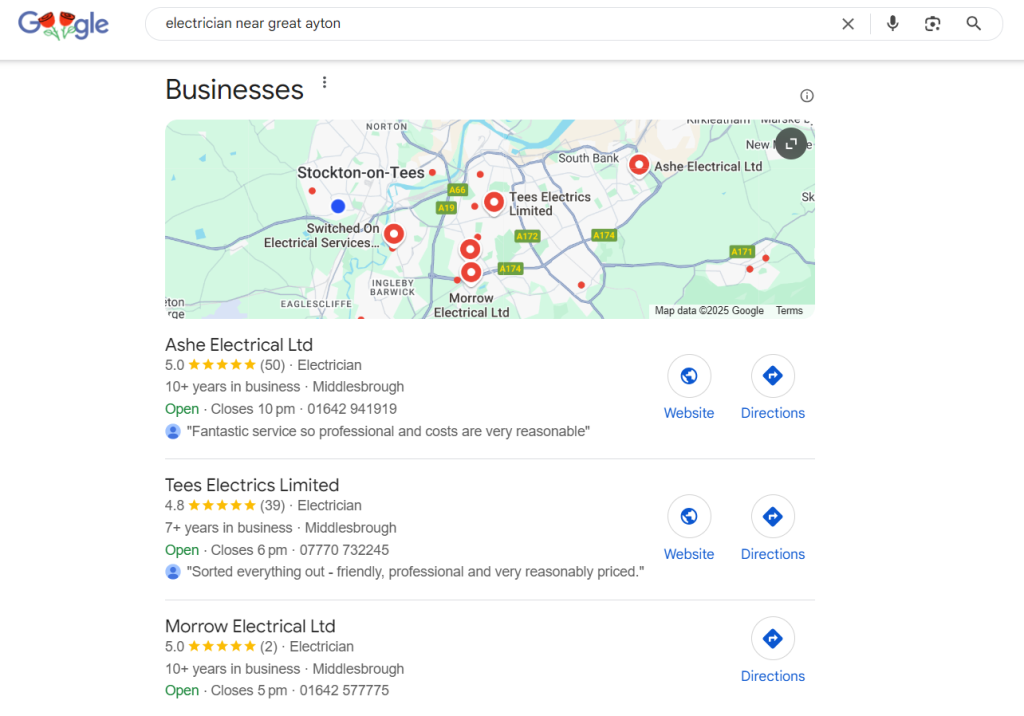
That’s the Map Pack, and it’s the holy grail for local visibility.
A properly set-up GBP massively increases your chances of showing up there which = more leads for your business.
Allowing you to rely less on word-of-mouth and websites like Checkatrade.
2. You Build Instant Trust with Reviews
Up to 98% of people read online reviews before they hire someone.
Your GBP puts your reviews front and centre: star rating, comments, and all.
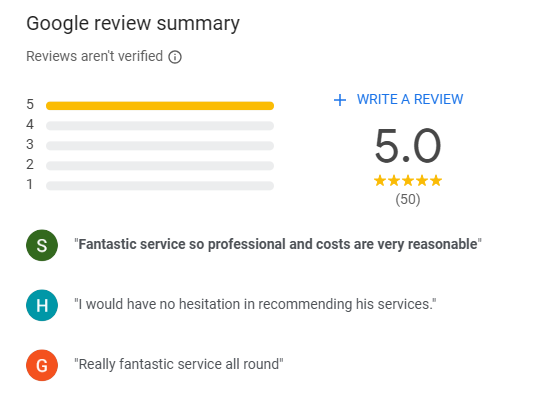
Good reviews build instant credibility.
Even one bad review (with no reply) can lose you a potential job.
But if you stay active and respond well? You come across as professional and reliable.
Did you know?: Reviews are one of the most important ranking factors when it comes to getting your GBP in the local pack section of the SERPs.
3. You Control What People See (and Click)
Your Google Business Profile isn’t just a passive listing. It’s your digital shopfront.
You can update and manage almost every detail of how your business appears on Google, including:
- Your contact info: phone number, email, website
- Business hours: including holiday hours and emergency availability
- The areas you cover: so Google knows exactly where to show you
- Your services: from rewires and EICRs to EV charger installs and fault finding
- Photos of your work: before-and-afters, van signage, team shots, etc.
- Business updates: “We’ve moved,” “Now offering weekend call-outs,” etc.
- Offers & promotions: for example, “Free fuse board check with every EICR”
And the best part? All of this shows up in search results before they even visit your website.
Instead of hoping people find you, you’re actively controlling your visibility and giving Google the signals it needs to push you to the top of the Map Pack.
4. It’s Built for Electricians
Unlike Instagram or TikTok, Google doesn’t care how pretty your branding is.
It cares whether someone in your area is looking for an electrician and whether you’re the best match based on the details you’ve added, the updates you’ve given, and the reviews you have on your GBP.
And that’s it.
Just set it up right so it know you’re THE guy, and get rewarded.

No fanciness included (or needed).
5. More Visibility = More Leads
If the other benefits on this list haven’t really vibed with you, this is the one that will;
At the end of the day, if you optimise your GBP properly, and it starts appearing on Google in all of the right places, you’re going to get more work.
Do I really need to say more?
Let’s get your GBP setup for success:
How to Set Up Your Google Business Profile from Scratch
Never set up a Google Business Profile before?
No worries.
Here’s how to do it step-by-step without overcomplicating things:
Head to Google Maps and Click “Add Your Business”
Go to Google Maps, click the menu; three little lines in the top-left
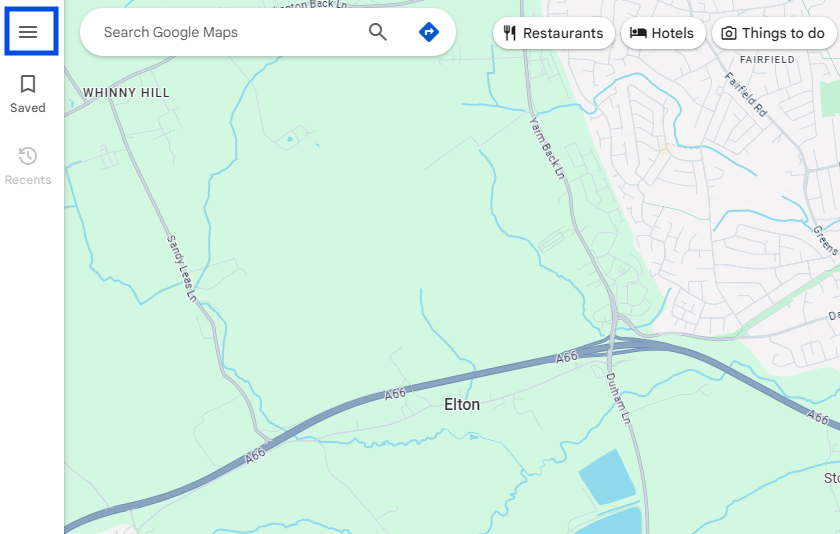
and hit “Add your business.”
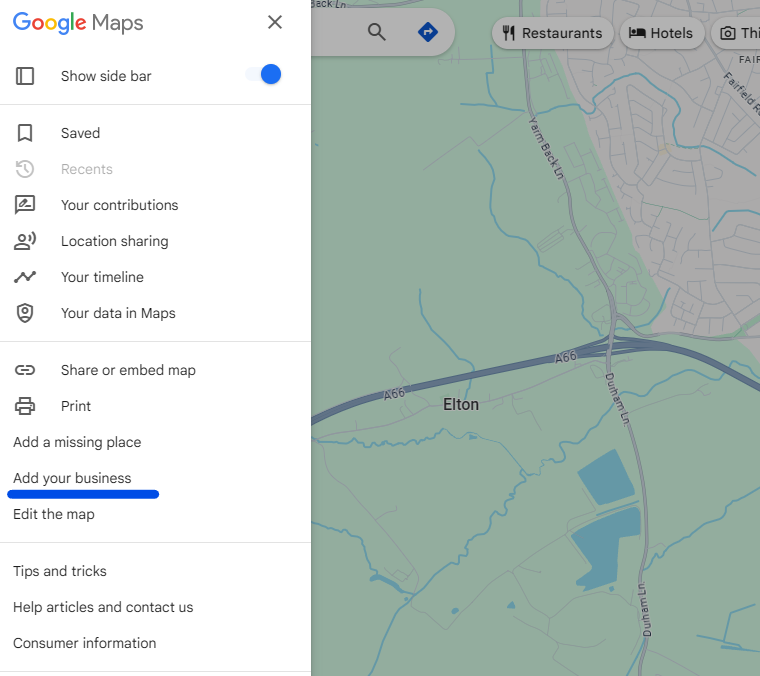
This kicks off the setup.
2. Sign in (or Create a Google Account)
You’ll need to be signed in to a Google account. If you already have one, skip this step.
Don’t have one? Follow these steps:
If you don’t have an account, follow these steps to create one:
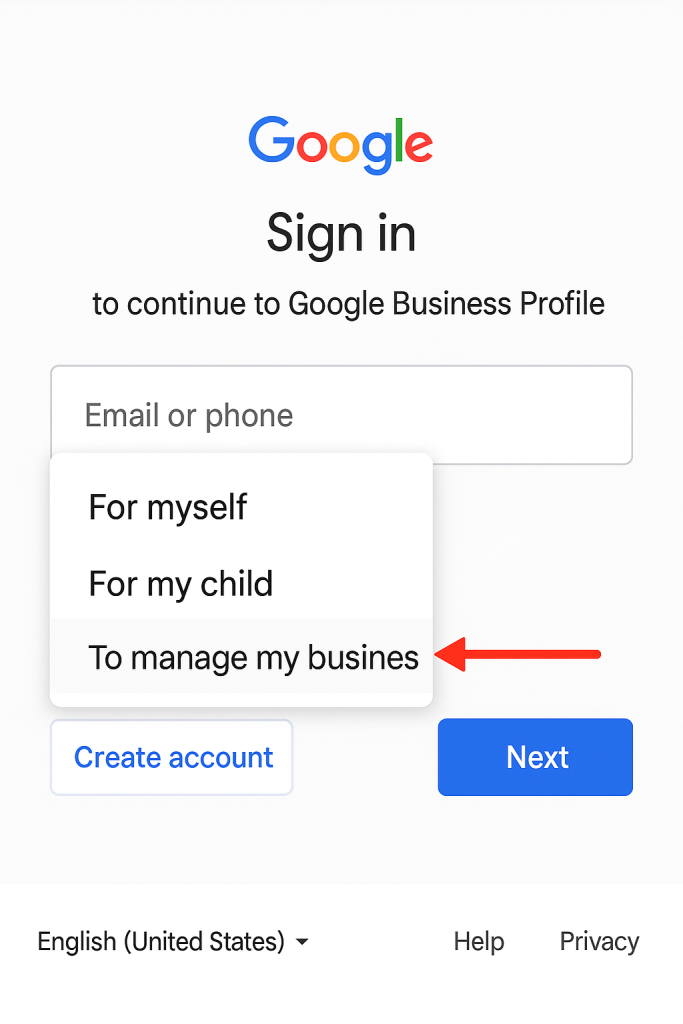
Click the “Create account” & pick “To manage my business” from the new menu that appears.
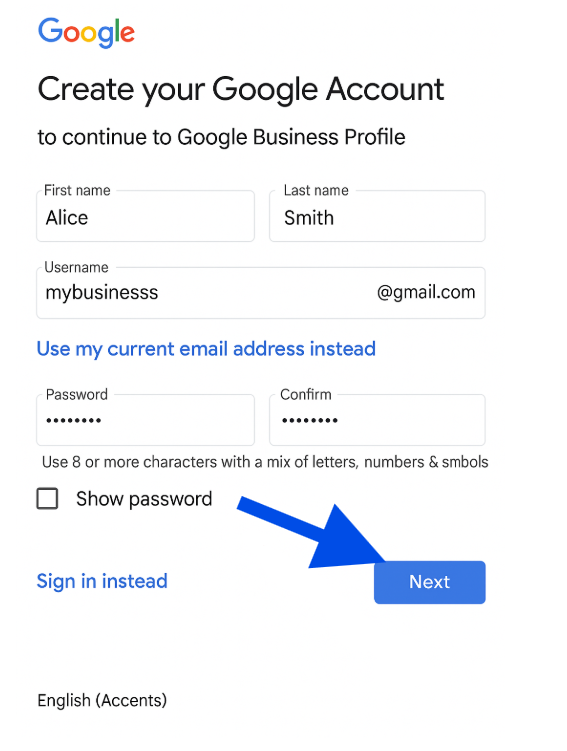
Fill out your info thats required, then click the “Next” button.
Verify your identity with a (unique – that hasn’t be used on any other account) phone number.
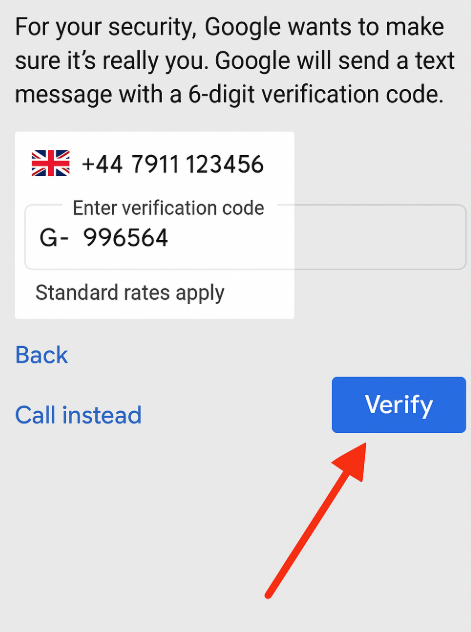
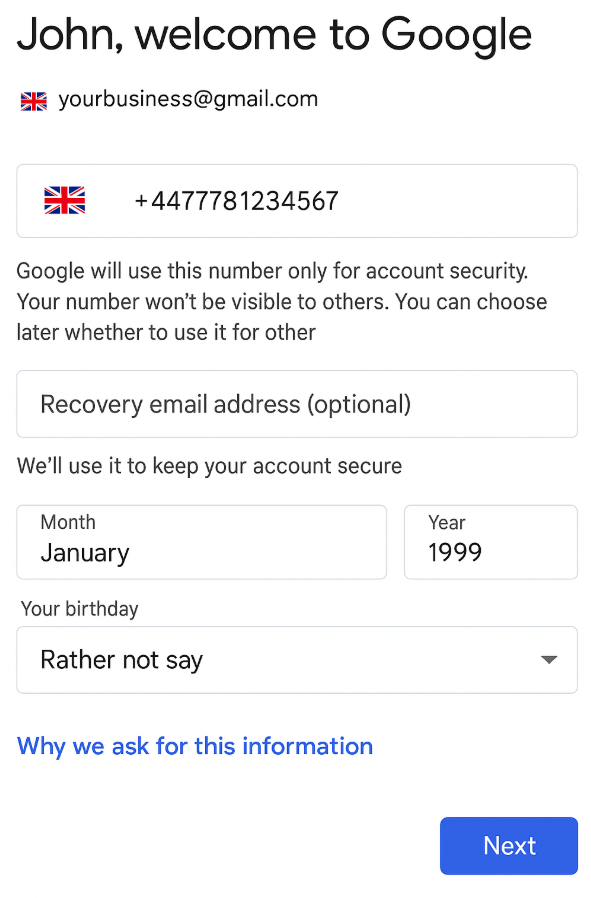
Google will then ask for additional details, fill them in, you’re almost done.
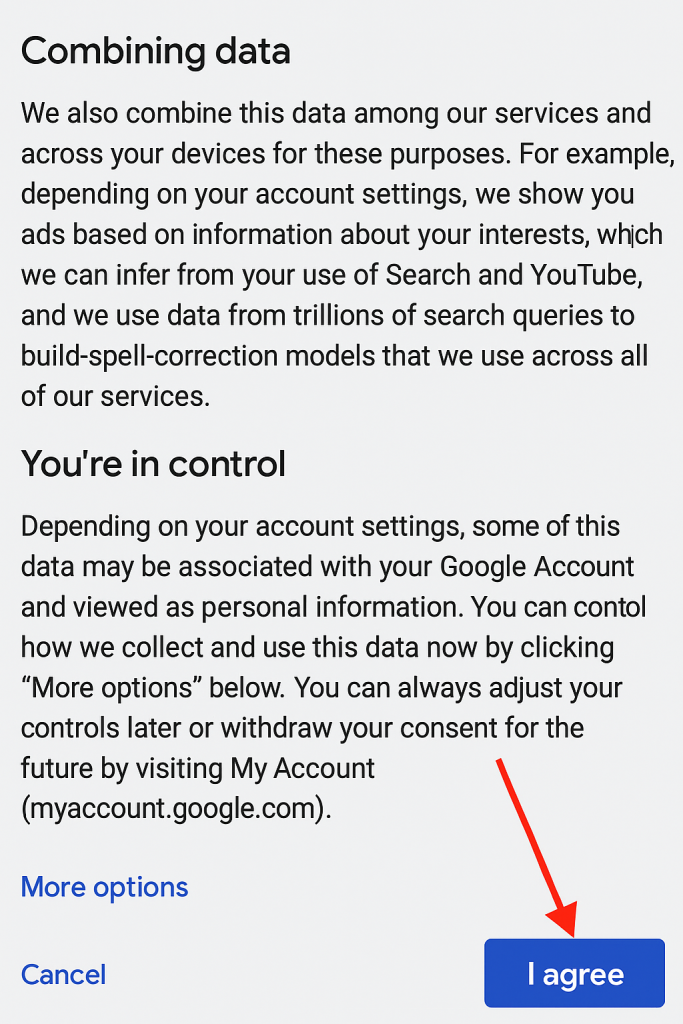
Click the “I Agree” button on the terms and conditions page.
You’re done! It’s time to start optimising.
Step 3: Enter Your Business Name and Category
Now it’s time to setup your business profile; start typing your real business name
Exactly how it appears in the real world.
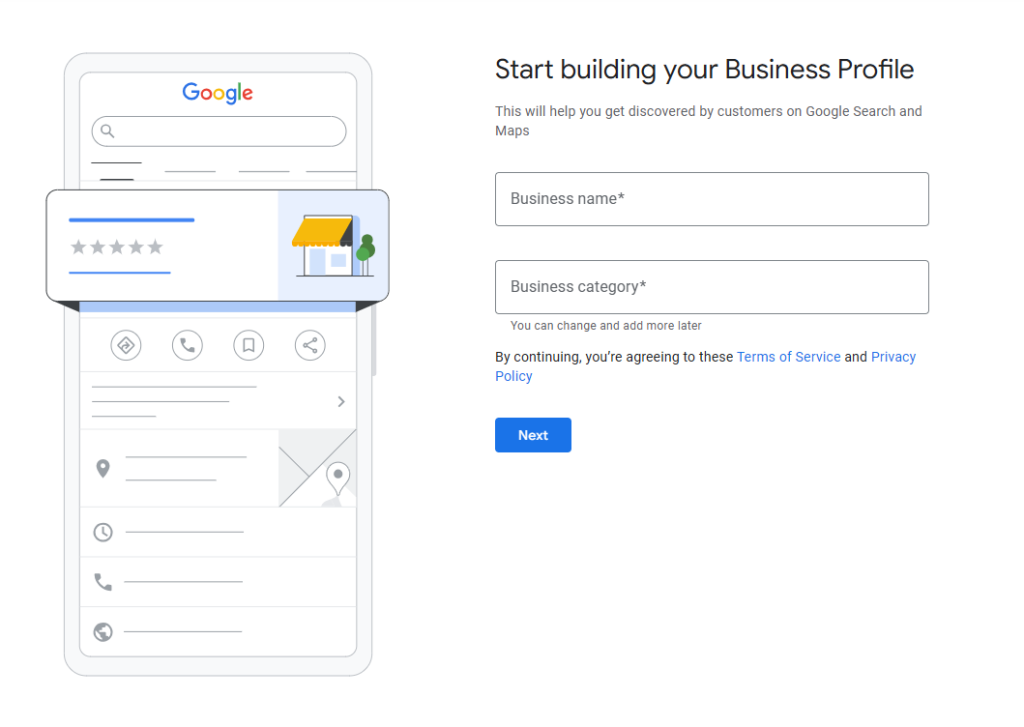
As you type it, Google will show you existing businesses in their database
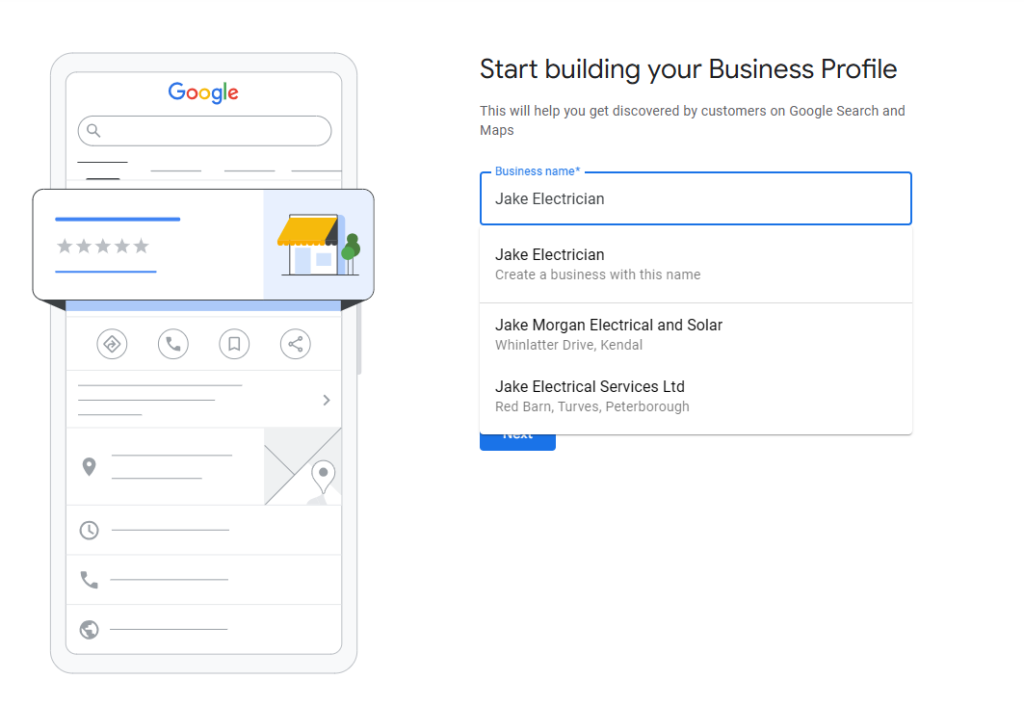
- If your business appears on the list, skip to the next step to learn how to claim your business.
- If it doesn’t, continue typing your full business name.
Write your business name exactly as it is.
No keyword stuffing like “Joe’s Electrics – Best Emergency Electrician in Leeds.”
Just “Joe’s Electrics.”
Google could suspend your listing if you try to game it.
Next, choose the business category that best matches what you do:
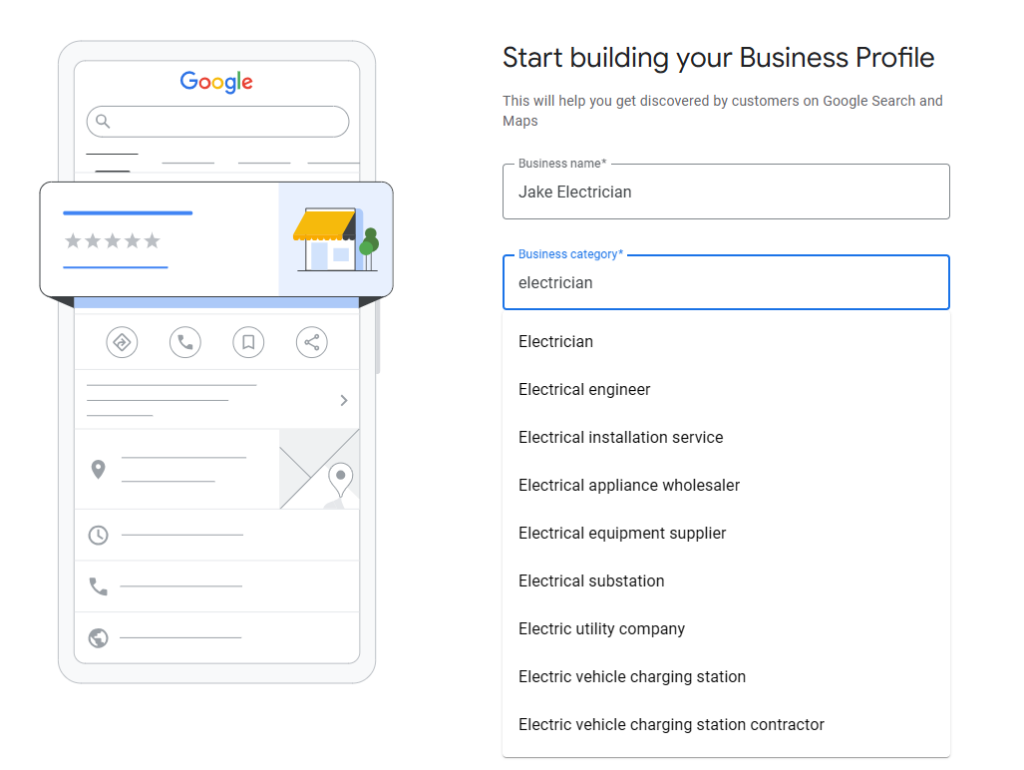
For most, that’s “Electrician.”
You can add more categories later if needed (and you should, depending on what the competition is doing + the individual services you offer), but this first one tells Google what your business is about from a top level.
Step 4: Add Your Address (If You’ve Got One)
There are two different paths you can follow depending on your situation.
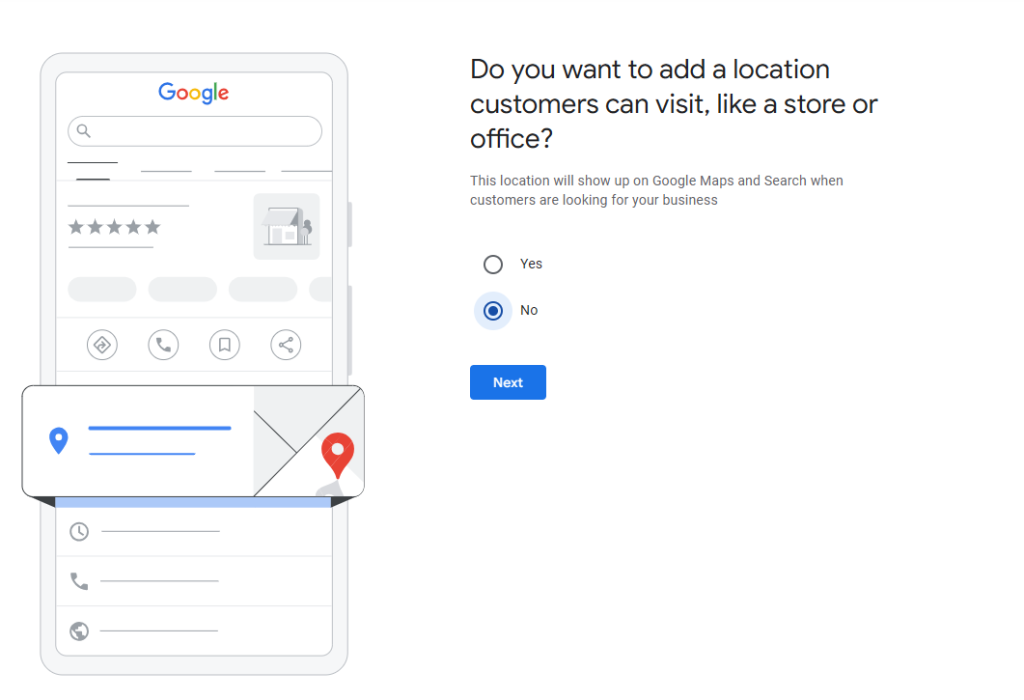
If you’ve got a shop or office people can visit, enter that;
Click the Yes button & hit next
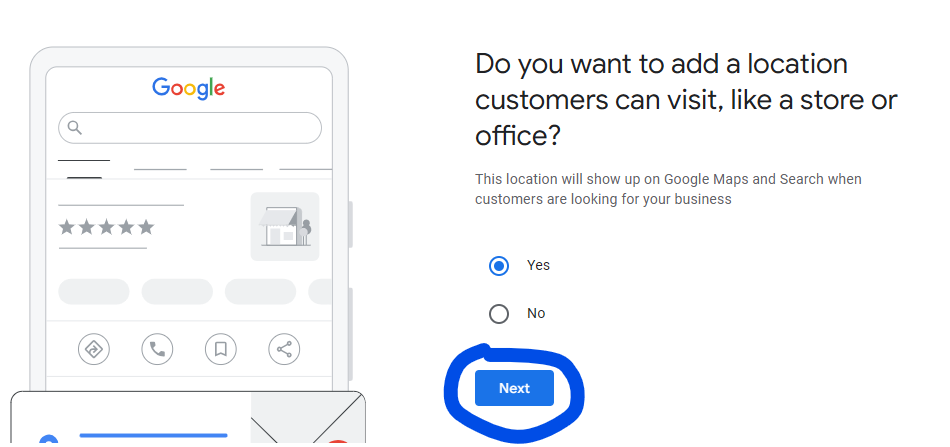
And then enter the details of the physical location:
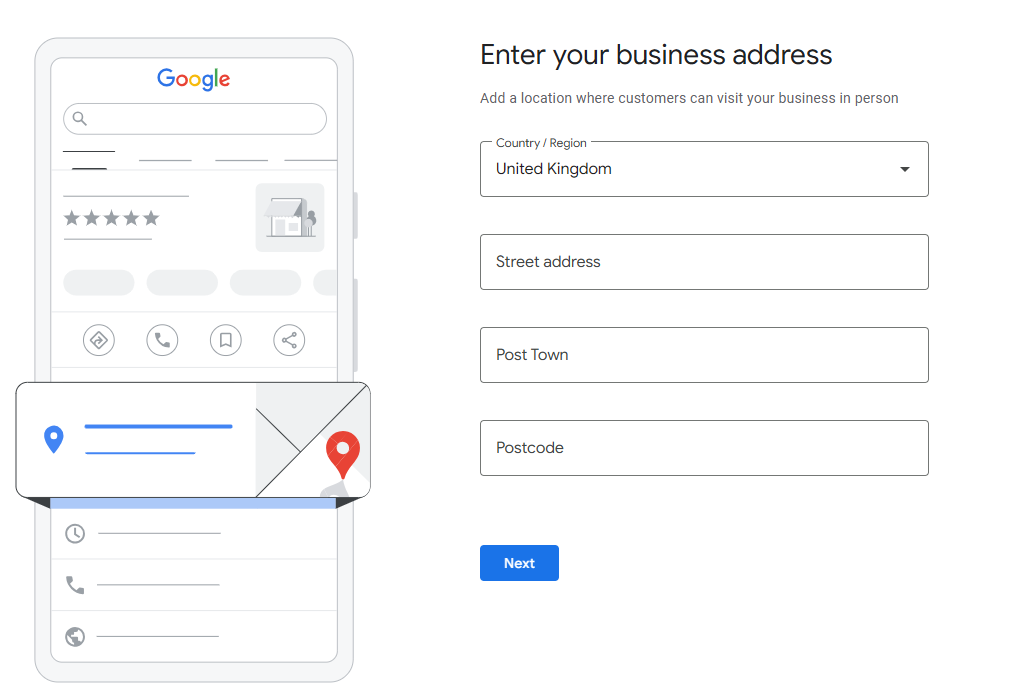
Google uses your address to check for potential duplicate listings.
If one of the duplicate listings is yours, proceed to the next step to learn how to claim your business.
If not, select the circle next to “None of these.”
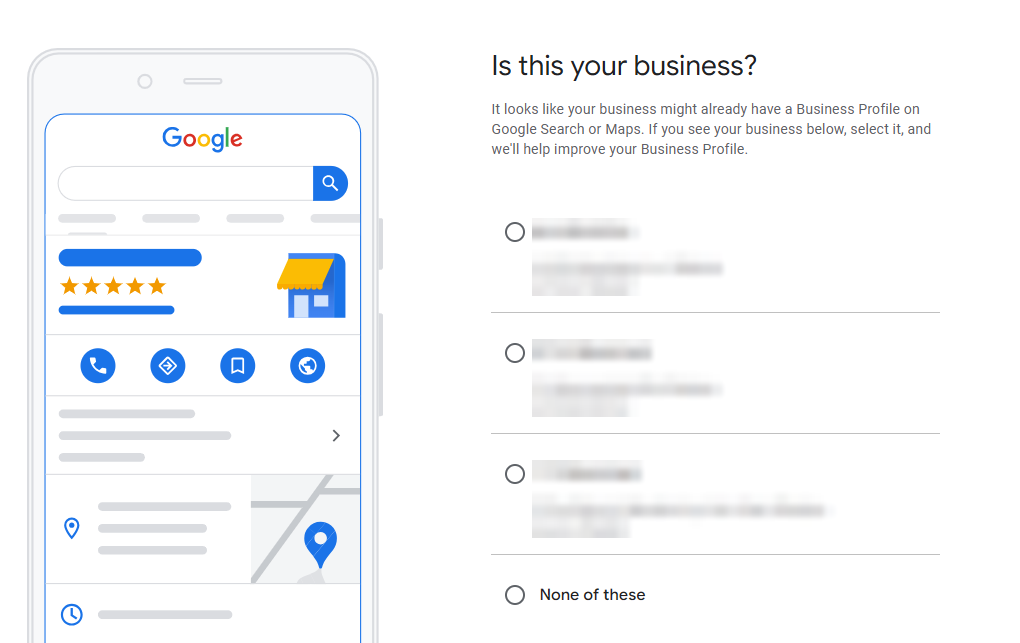
If you work from home or go out to jobs (like most electricians), you can skip this adding address step.
Just make sure let Google know by circling the no option from below via the previous window:
HOWEVER;
Ideally, you want a physical address tied to your business.
It’s one of the strongest signals to Google (alongside reviews) that you’re legit.
You’ve planted your flag locally, and customers know where to find you if needed.
Separating you from the cowboys.
Do Electricians Need a Physical Address on Google Business Profile?
You need a real base, but you don’t have to show it to the public.
Google sorts businesses into two types. A storefront is somewhere customers actually visit during your opening hours, like a shop or trade counter with your name on the door. A service-area business is one that goes out to customers, which is most electricians. Google’s own guidance is that if you don’t meet customers at your business address, you can choose not to show it.
So if you work from home or out of the van, here’s what I’d do:
- Set yourself up as a service-area business (answer “no” when Google asks if customers can visit you)
- Add the towns you cover
- Hide your address so the public never sees it. Google still needs to know where you’re based, which is why the verification postcard lands at your real address
Only show an address if it’s somewhere customers can genuinely turn up, with your business name on the door and someone there when you say you’re open.
And please don’t be tempted by a virtual office, a PO box or a mail forwarding address to look more local. Google’s guidelines don’t accept PO boxes or remote mailboxes, and a rented address you don’t actually work from isn’t eligible either. A co-working desk only counts if it has your signage, is staffed during your opening hours and you really do see customers there, so for most sole traders it’s not worth the risk.
It might slip through at first, but you’re risking suspension, and a suspended profile means you vanish from Maps while you argue with support. That’s a lot of missed calls for the sake of a nicer-looking address.
If it’s already happened, here’s what to do when your Google Business Profile is suspended.
Short version: your real address, hidden, with your service areas set. That’s all most electricians need.
Step 5: Choose Your Service Area
Wether you skipped adding your address or not, it’s time to tell Google the areas you serve.
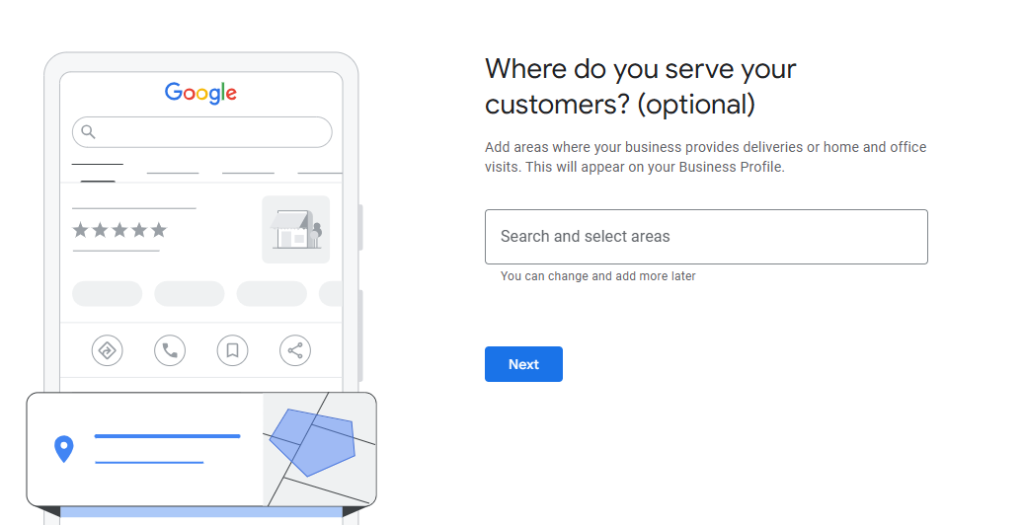
It’s important to keep this relevant; list your main towns or cities, not the entire UK.
I would recommend only listing areas within a 5 mile raidus of the main service area that you serve; you will have a much higher chance of ranking in the local pack (the ultimate goal here) if you’re within this radius.
Example: An electrician main service area is Redcar, and they would attach the following towns as their additional service araes: Stockton, Middlesbrough, Redcar (yes, attach this again), Guisborough.
Step 6: Add Contact Info
Drop in your phone number and website link.
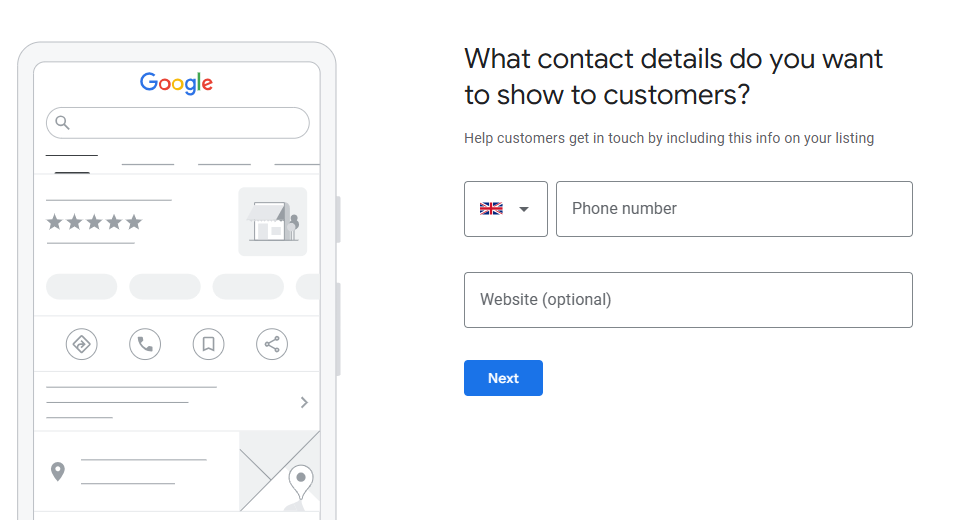
Do NOT leave this blank.
This is how customers will contact you straight from Google Maps or Search.
AND once again, shows you are legit; you have your virtual flag down.
Step 7: Verify Your Listing
Google needs to confirm you are who you say you are.
You might need to verify via:
- Postcard (most common)
- Phone call or text
- Video call
- Recorded video
Choose what’s available. Follow the steps and enter the code when it comes.
Here is what I see for this example business page:
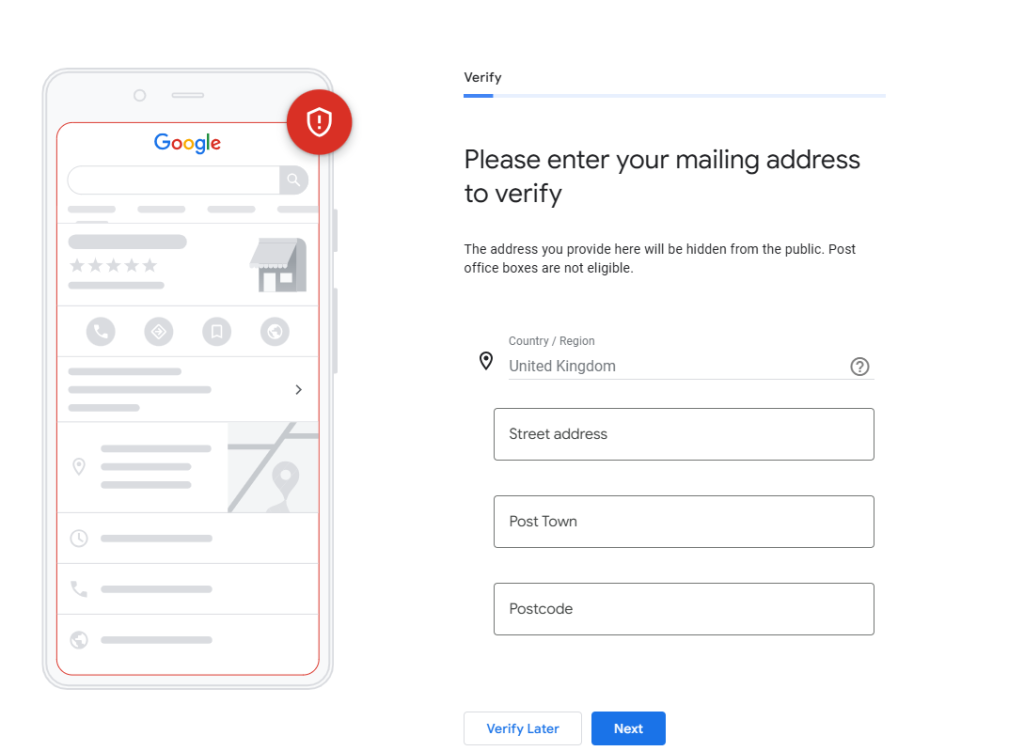
Heads up: If you’re using a home address, the postcard will go there, but you can hide the address from public view later.
If the available verification options don’t work for you, you can contact the Google Business Profile Help Center for assistance.
Bonus Steps: Add More Info
Once you’re verified (or in some cases, if what you’ve already provided is good enough), Google will prompt you to finish setting things up.
Don’t breeze past it: this is where you make your listing actually work; most people do skip this part, so this is where you can start to build ground against competitors who have been listed for years.
Here’s what you can additionally fill out:
Add the Specific Services You Offer
Google lets you list out what you do, on top of listing yourself as an ‘electrician’ or ‘electrical contractor’.
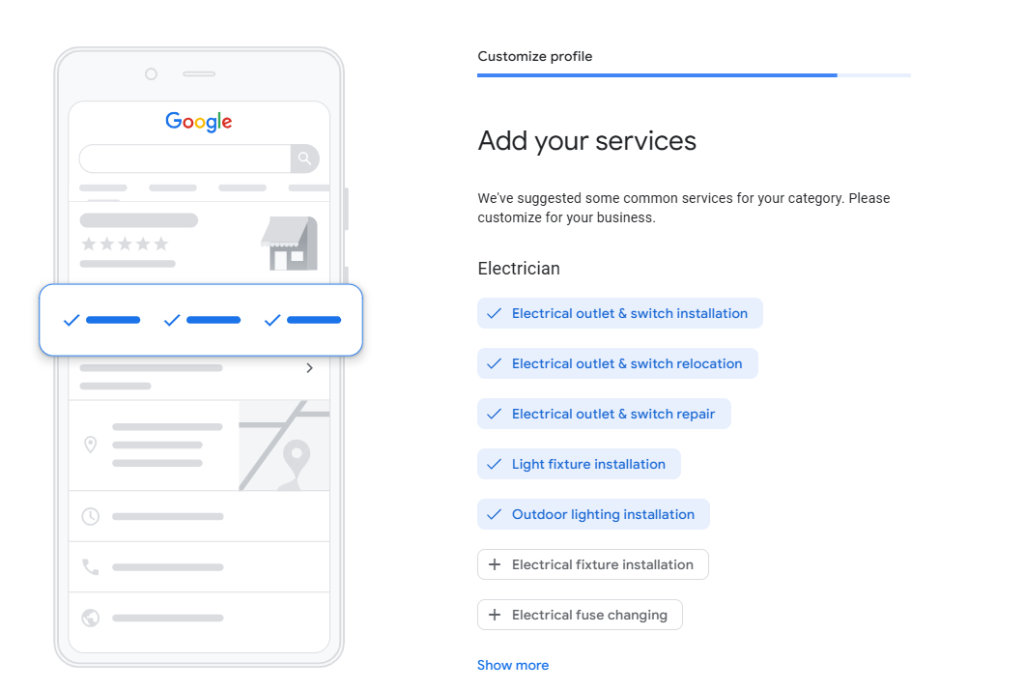
And yes, this actually helps you show up when people search for particular services.
You can’t really overdo it here, just list everything that you do
- Rewire,
- Fault finding,
- Fuse board upgrades,
- EV charger installs,
- Emergency callouts,
- EICRs,
The lot.
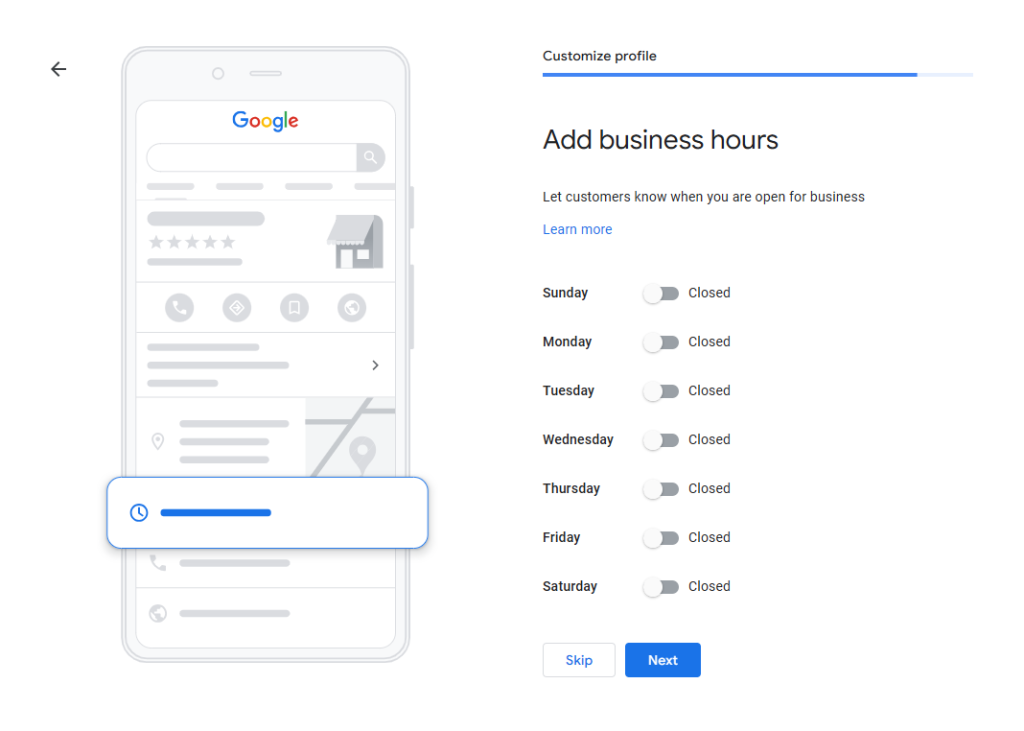
Add Business Hours
Don’t just put “9 to 5” because you feel like you should.
- If you take emergency callouts late at night, say so.
- If you don’t work weekends, make it clear.
People don’t want to guess when you’re open.
Google shows your hours right in search, so keep them real and keep them updated.
Pro Tip: Generally, I’ve found, that while reviews and having a physical address is what REALLY matters, small wins like, having your business open for longer than your competitor can help with rankings too – even if its just 15 minutes more.
Write a Solid Business Description
You’ve got 750 characters to tell people what your business is about.
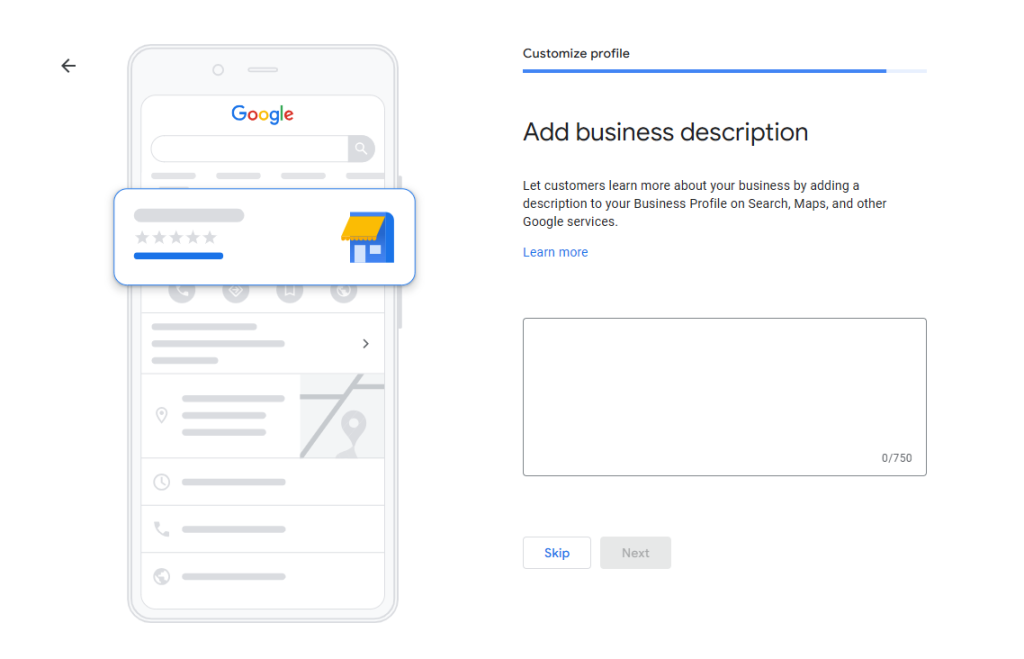
Keep it clear, local, and straight to the point.
Here’s what to include:
- What you actually do (rewires, fault finding, EICRs, etc.)
- What makes you different (24/7 callouts, fast response, tidy work)
- Where you work (Redcar? Teesside? Say it.)
- A bit of backstory if it’s relevant (“Family-run since 2009”)
Don’t overthink it: just write like you’d explain it to a customer.
Avoid adding, you don’t want to get suspended:
- Swear words or dodgy language
- Links or “click here” stuff
- Weird formatting or code
- Sale promos or discounts (Google hates that in the description)
Just keep it clean, helpful, and local, and you’ll be sound.
Upload (Quality) Business Photos
Add photos to your Google Business Profile, seriously, don’t skip this.
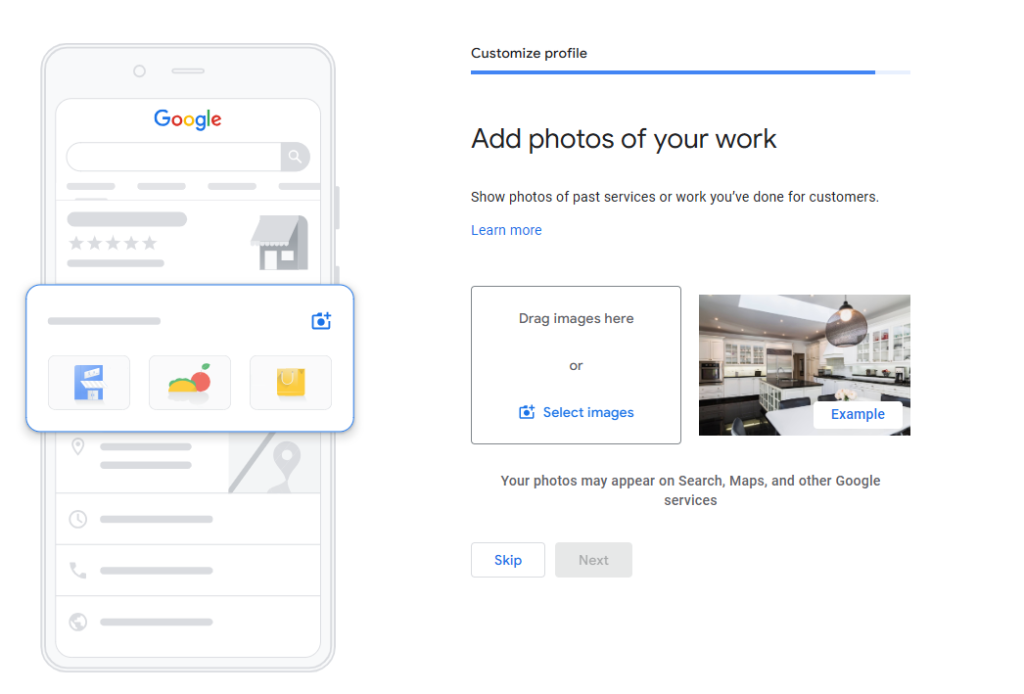
This is a key factor Google & customers care about in our new AI world.
People want to see what kind of business they’re dealing with before they ever pick up the phone to enquiry, never mind buy.
Clean van? Tidy fuse box installs? Team photo? It all helps build trust before they’ve even picked up the phone.
What to upload:
- Your van (with branding if you’ve got it)
- You or your team on the job
- Before & after pics of jobs
- Your workspace or office (if you’ve got one)
- Any specialist tools or equipment you use
Just show that you’re legit.
These photos help you stand out in search, look more professional, and can win you work.
Most electricians don’t do this, so take advantage of that.
I cover this in more depth in why electricians need a physical address on GBP.
Custom Email ([email protected])
As the final step in setting up your Google Business Profile properly, it’s worth sorting a professional email address.
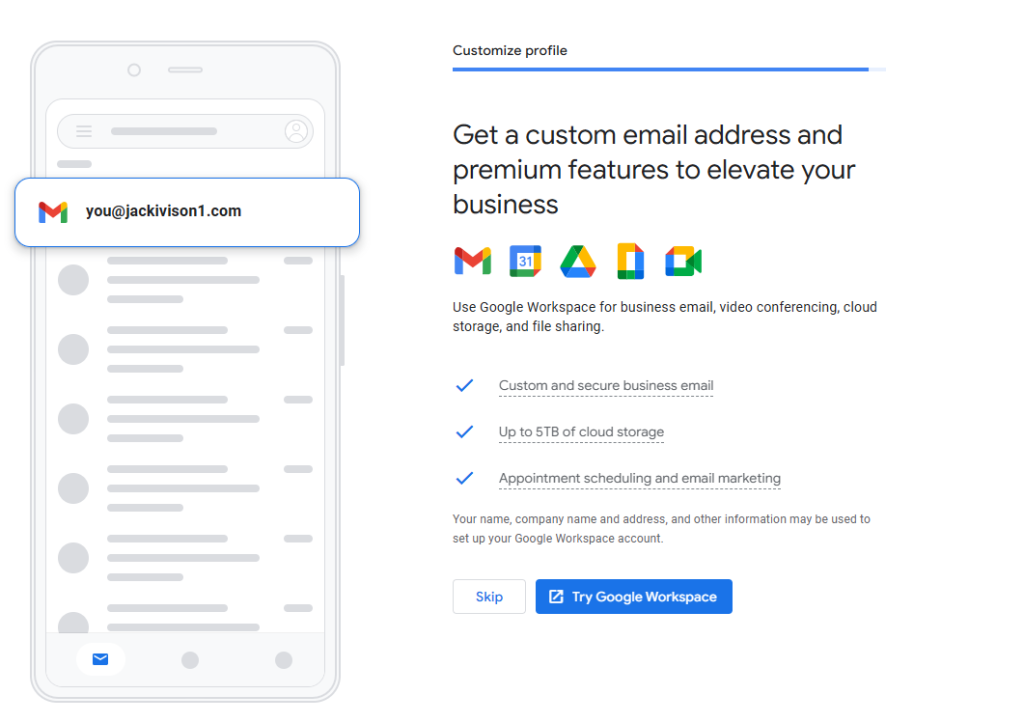
Instead of using a Gmail or Outlook, go with something like [email protected] or [email protected].
Looks cleaner. Builds trust.
And keeps your business looking like it actually means business, instead of a dodgy one man band that’s looking to scam people.
Now, it’s time to wait;
Once You’ve Verified, Your Edits Will Be Live
You won’t be able to see your profile live on Google just yet.
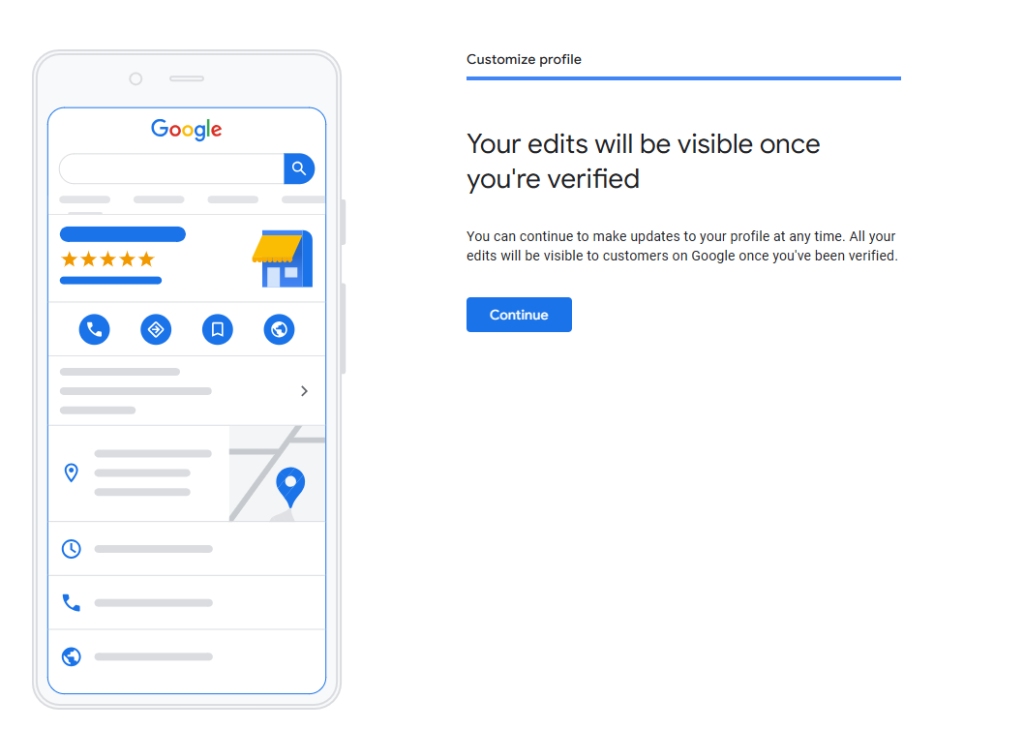
Until Google knows you’re the real deal, your profile stays in limbo for now.
Once you’re verified, and that can take a set amount of time depending on what verification method you chose, it’s game on.
How to Claim Your Existing GBP (If One Already Exists)
Sometimes Google’s ahead of the game.
Your business might already have a listing, even if you didn’t set one up (or you could have done, on another account).
But if you haven’t claimed it, you’ve got zero control over it.
That means no edits, no posts, no replies to reviews… nothing.
And all those leads you could be getting? All going to your competitor.
Here’s how to take ownership of your listing and get it under your control:
Step 1: Search for Your Business on Google Maps
Pop your business name into Google Maps.
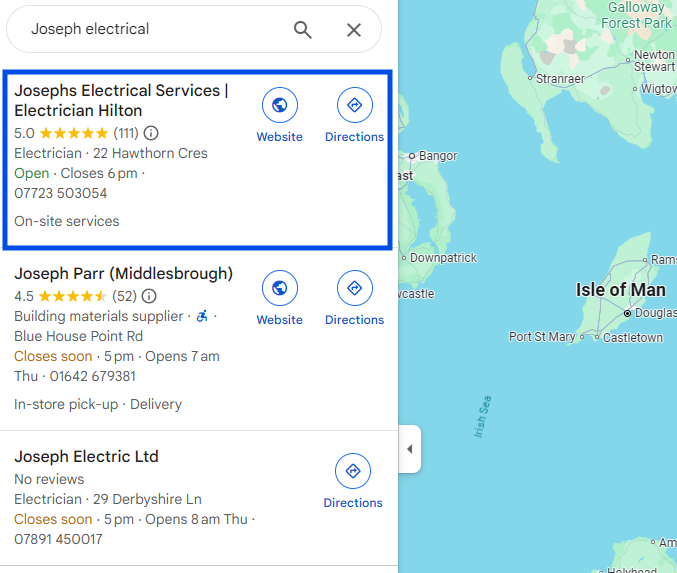
If it shows up, Google (or someone else) has already created a profile for you, continue on with the steps following.
If nothing comes up?
You’ll need to create one from scratch. Skip back to the previous section for that.
Step 2: Look for the “Claim this Business” Button
Found your listing?
Great. Now look for either:
- “Claim this business” or
- “Own this business?”
Click whichever one shows up.
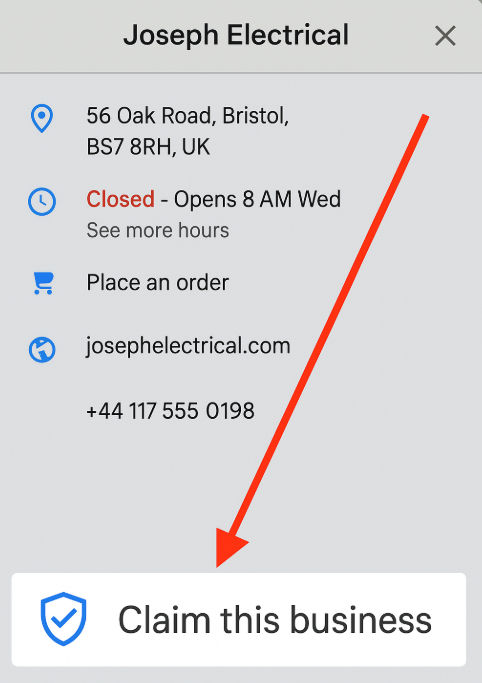
If you don’t see those options, it usually means:
- Someone else has already verified it (maybe an old staff member or marketing company), OR
- You’re already managing it and just forgot (worth checking all of the e-mail accounts you have).
Step 3: Click “Manage Now”
Once you’ve clicked the button, hit “Manage Now.”
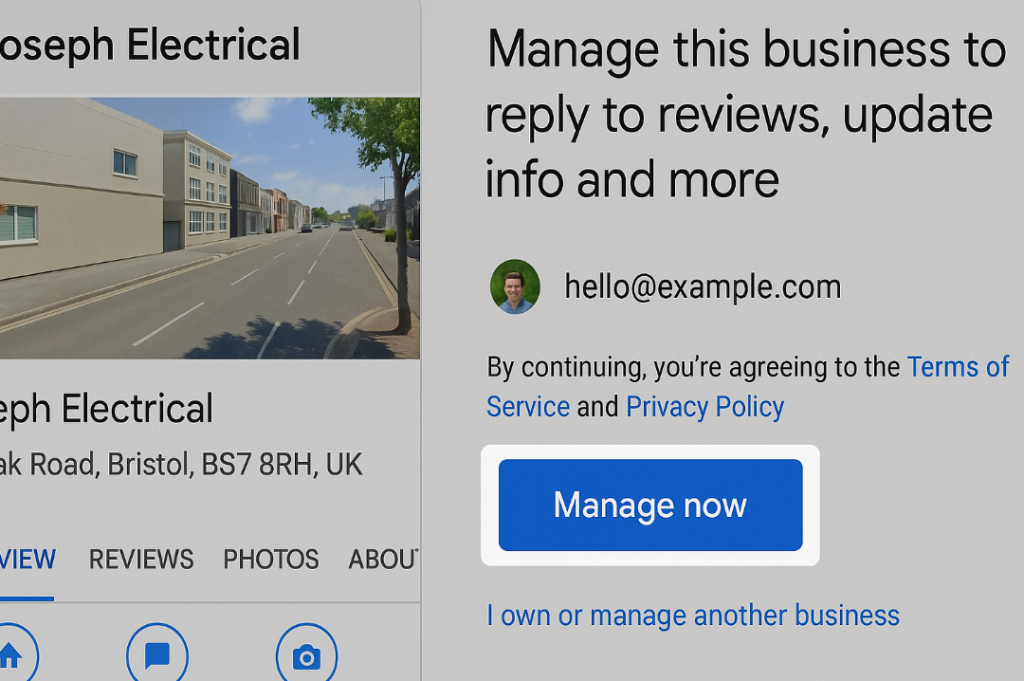
Make 100% sure it’s actually your business before continuing you don’t want to claim someone else’s listing by mistake.
If it’s not yours, click “I own or manage another business” and go back to setting up a new one.
Step 4: Verify It’s Really Yours
You’ll need to verify ownership before they hand over the keys.
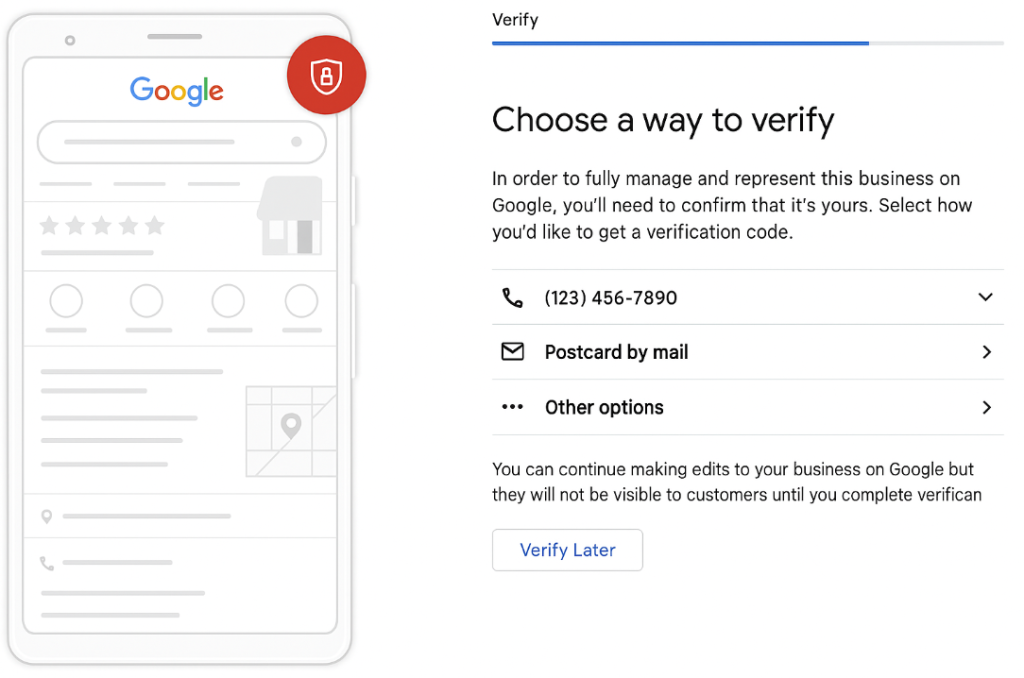
That might be via:
- A phone call or text
- Postcard (they’ll send it to your business address)
- A quick recorded video
- Or a live video call with a support rep
Once you’re verified, you’re in.
You can start editing your info, responding to reviews, posting updates, and doing all that good stuff that gets you more leads throguh your Google Business Page Dashboard.
Someone Else Already Manages The Profile? Here’s What To Do:
Tried claiming your listing but got hit with a message saying someone else already owns it?
Don’t panic – you can still get access.
Here’s how to do it:
Step 1: Go to the Create Page
Head to Google’s Business Profile create page and search for your business name.
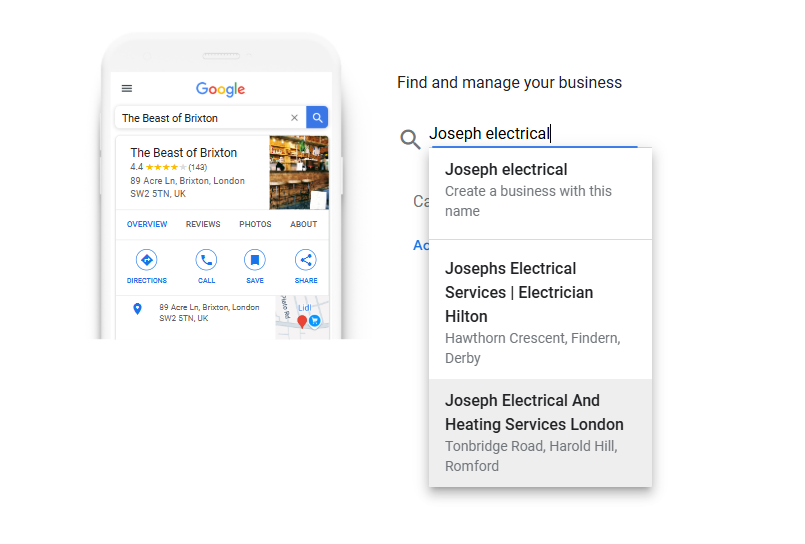
If the listing already exists, it’ll show up in a dropdown. Click it.
Step 2: Request Access
Google will say, “This business is already managed by another account.”
If it’s your old email, great, just log into that.
If not? Click “Request access.”
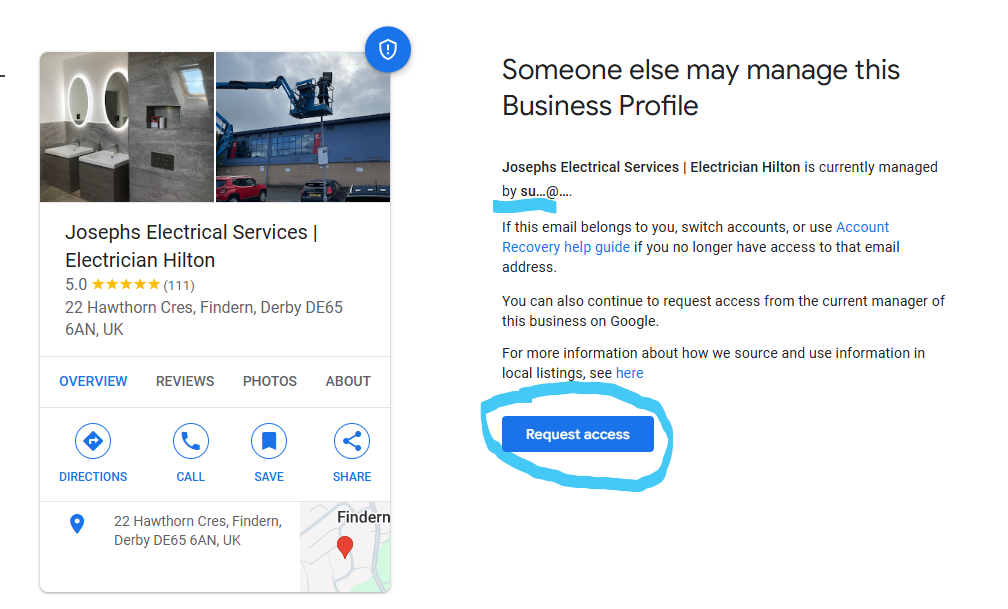
Step 3: Fill in the Form
Google will ask for a few details:
- Your name
- Contact info
- The level of access you want (hint: ask for full ownership)
- Your relationship to the business
Fill it out and hit send.
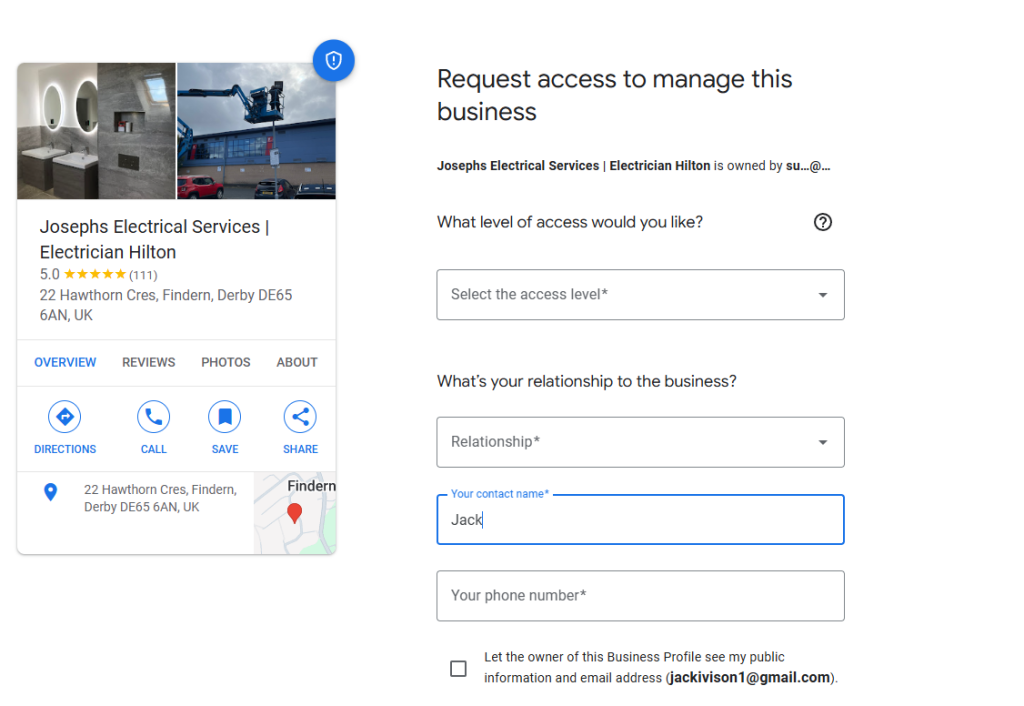
Now you wait.
The current owner gets 3 days to respond.
If they ignore you? You might get the option to claim it yourself after a few days; this only happens if Google can tell if the GBP is sat on a dead, unused e-mail.
If you hearing nothing back or it’s urgent, contact Google Support ASAP.
They MAY be able to help you get it back (I say may, cause we both know technical support is AWLAYS useless, no matter the company).
So, you’ve either; got a fresh GBP or you’ve just claimed your old one back, now it’s time to optimise it to its fullest potential.
How to Optimise Your Google Business Profile (Properly)
Claiming or building out your profile with the bare minimum, typically – depending on your service area – isn’t going to be enough to get clicks and win jobs.
Here’s what to do:
Check and Fix Your NAP
NAP = Name, Address, Phone number.
These need to be exactly the same on your Google Business Profile, your website, and any other place you’re listed (Yell, Yelp, Checkatrade, etc).
So you don’t confuse customers, helping you to convert as many people as you possibly can.
Even small changes like “St” vs “Street” or a missing postcode can negatively impact your GBP.
Start by checking your NAP details are bang on.
Just Google your business while you’re logged in.
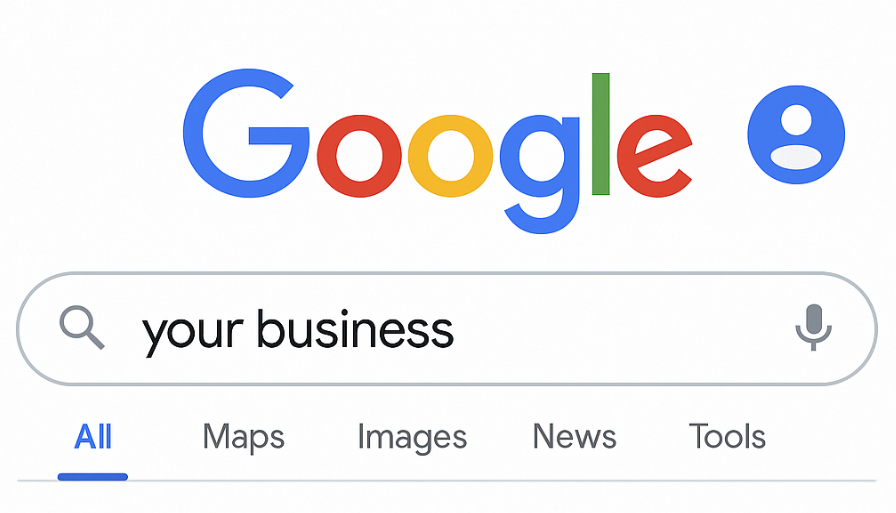
Click “View profile”,
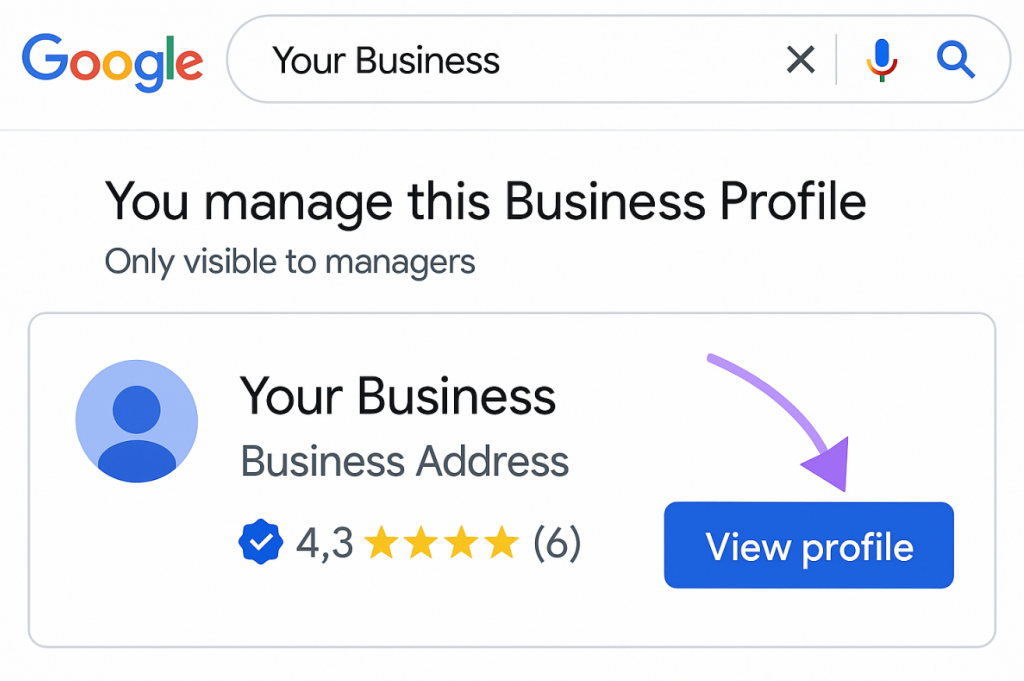
then hit “Edit profile.”
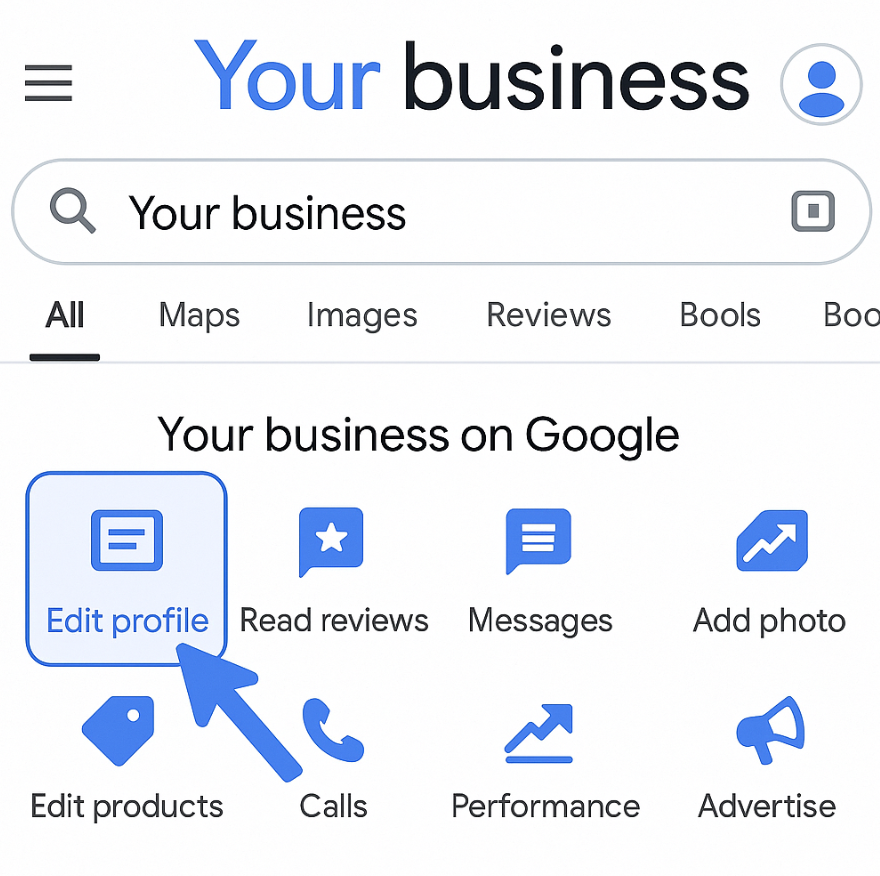
A new window should now open up, check all of the information within it; all of it should be up to date, but if you’re in a hurry, just make sure your name, address, and number are 100% accurate.
Then hit save.
Your NAP isn’t just on your Google Business Profile. Your info is likely scattered across places like Yelp, Tripadvisor, Checkatrade, and more.
Make sure it all matches up, word for word.
You can check them manually, and yeah, it takes time.
But it’s 100% worth it if you care about ranking better and making sure customers aren’t getting mixed messages when they try to find or contact you.
Now that’s done with, its time to write an EVEN BETTER business description
Write (An Even Better) Business Description
Most electricians waste the business description on their Google Business Profile.
This little block of text is your pitch to a customer who’s already looking at you.
Here’s the deal: customers scan your description to figure out what you do and where you do it. Google hasn’t confirmed the description as a ranking signal, so it won’t lift you up the map on its own, but it’s where a customer decides whether to ring you or the next electrician.
If the jobs and towns they searched for, like “emergency electrician in Stockton” or “rewire in Yarm”, aren’t in there, you’re giving them less reason to pick you. Use the words you found during the keyword research stage of your local SEO campaign.
So keep it human, but also make it count.
You want to naturally include:
- What you offer (be specific: rewires, fuse board upgrades, EV charger installs, etc.)
- Where you work (your town, and nearby areas too)
- Why someone should trust you (insured, certified, quick response, years in business, whatever makes you stand out)
- AND your target keywords (BUT PLS, keep it natural – don’t stuff.)
Here’s a solid example:
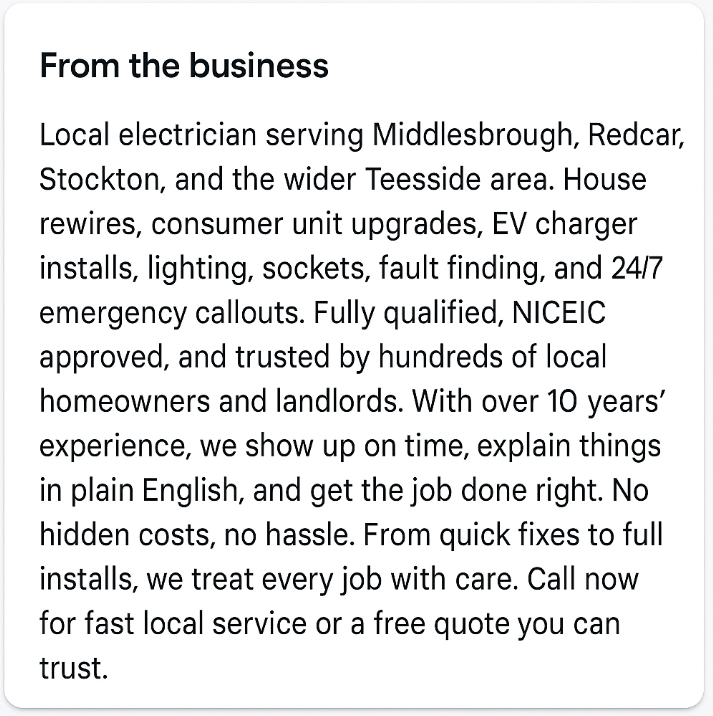
Clean, local, service-focused, and trust-building. That’s what you’re aiming for.
Want more examples to steal from? I’ve written a full guide on writing a business description for electricians.
Add Quality Images
Most electricians treat photos like an afterthought.
But photos are one of the first things people look at when they find you on Google.
If you’ve got nothing there, or it’s just your logo slapped on a grey background, you’re wasting prime digital real estate
Potential customers might even trust you less, since you look like you haven’t bothered to put the time in = scammy/cowboy esq.
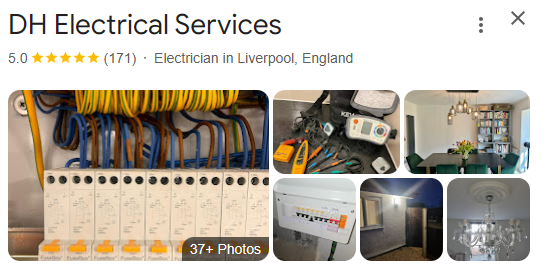
Here’s what to upload (and why it matters):
- Your van or work vehicle parked at a job: makes you look local and legit.
- Before and after shots of your work: rewires, board upgrades, EICRs. Show the mess you walked into and the tidy fix you left behind.
- Photos of you or your team on the job: don’t overthink it, just get a quick snap. Helps build trust.
- Interior/exterior shots of your premises (if you have one): gives people confidence you’re a real, physical business.
- Certifications or awards on the wall: humble brag time.
- Any kit or tools you use: especially if you’ve invested in proper gear.
These images don’t just make your profile look nicer but they also increase engagement.
That means people spend more time looking at your profile (which Google sees), and it nudges them closer to calling you.
Here are Google Business Profile’s guidelines for photo sizes:
- File size: Between 10 KB and 5 MB
- Profile photo: 250 x 250 pixels
- Cover photo: 1080 x 608 pixels
- Google posts: 1200 x 900 pixels
- Business photos: 720 x 720 pixels
- Format: JPG or PNG
Pro tip: Add at least 5–10 good photos to your GBP today. Then, keep updating them over time.
Use Google Posts/Updates to Stay Top
Most electricians don’t touch Google Posts. Which is wild because it’s a free billboard right inside your profile.
Google Posts let you drop updates, promotions, event info, or quick tips straight into your Google Business Profile. When someone checks you out on Search or Maps,
Boom
They see your latest post right there.
NOW, this isn’t going to blow up your GBP overnight, BUT it CAN make the difference when a potential client is trying to figure out who to call, you or a competitor.
Here what they look like on a profile:
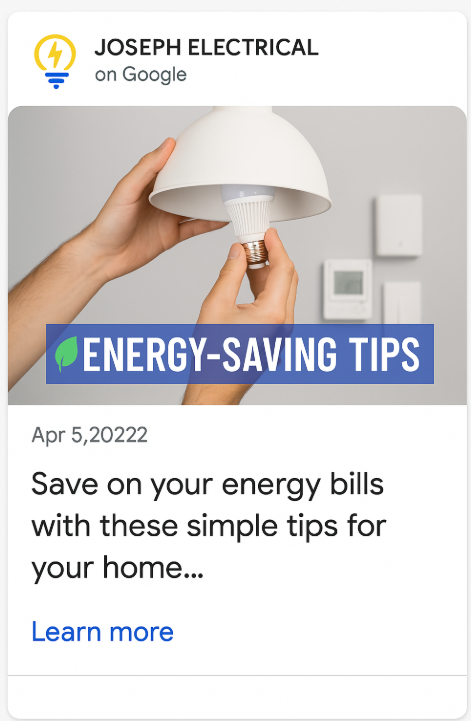
Here’s what to post:
- Job spotlights: “Just finished a fuse board upgrade in your town – here’s what to expect if you’re due one.”
- Seasonal advice: “Winter’s coming. Here’s why outdoor sockets fail in the cold.”
- Special offers: “10% off EICRs in April – local landlords only.”
- Business updates: “We’ve just added EV charger installs to our services.”
- Customer tips: “Here’s how to tell if your RCD is working.”
Here’s how to create a post:
- Head to your Google Business Profile while logged into your account; search your business on Google.
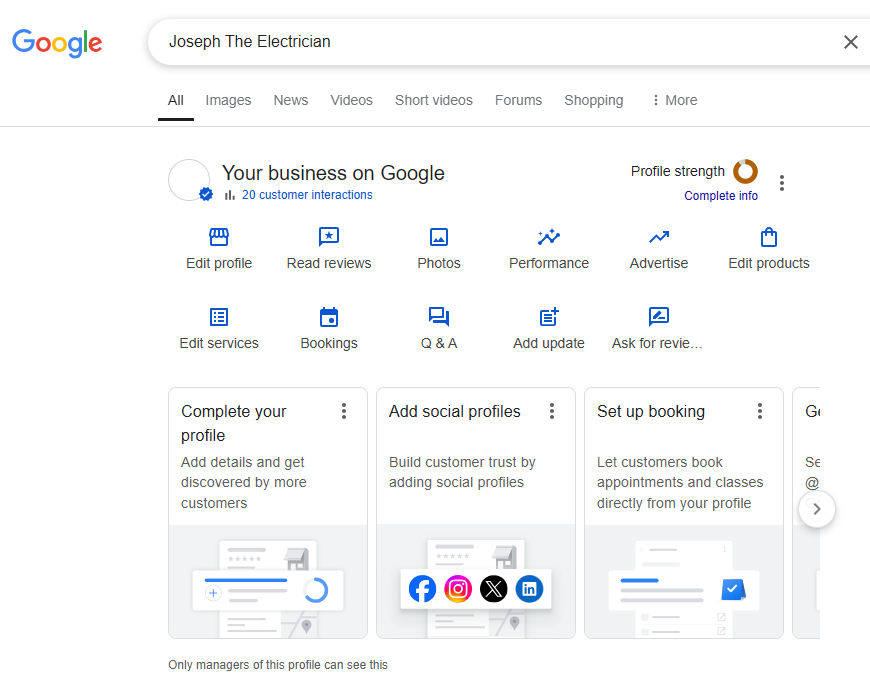
2. You’ll see the option to “Add update”. Click that.
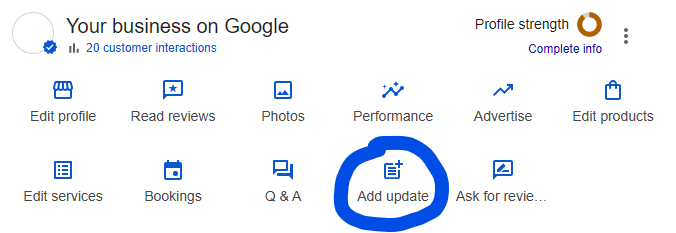
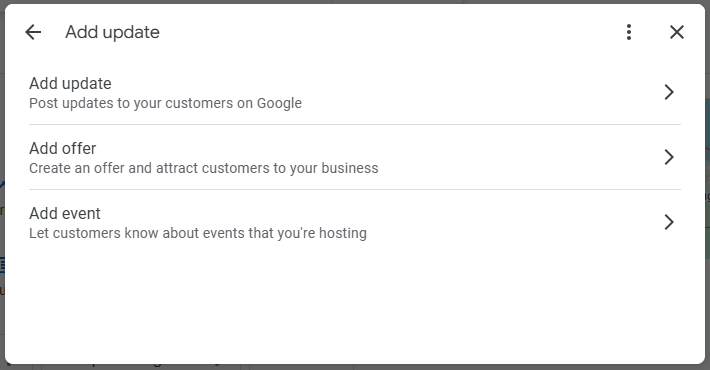
3. You should now see a new window with a few options; you can circle back to the others later, but in this step by step we are focusing on posting a company/business update, so click the ‘Add Update’ option
4. Write your post in the description box: Keep it snappy.
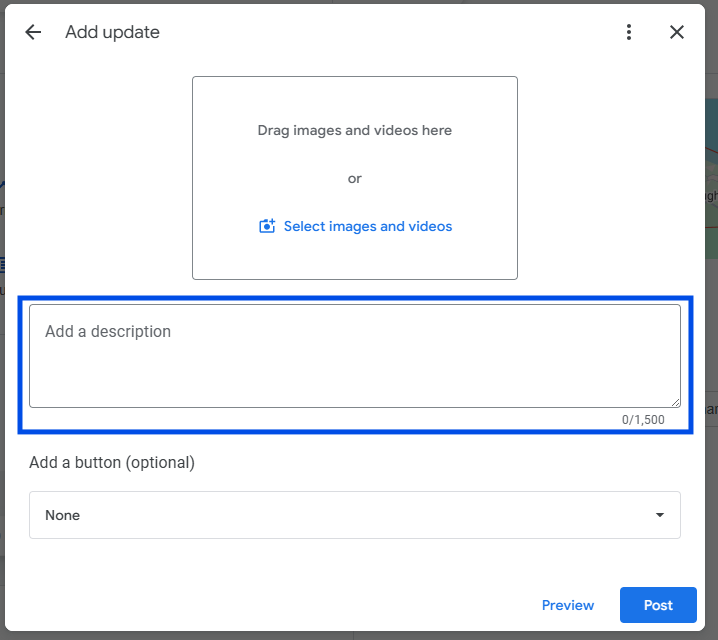
5. Add a photo that relates to the post
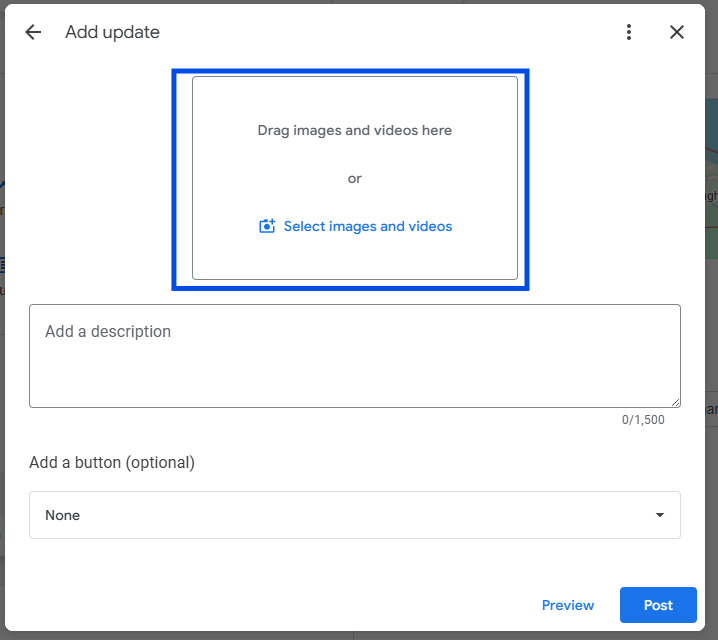
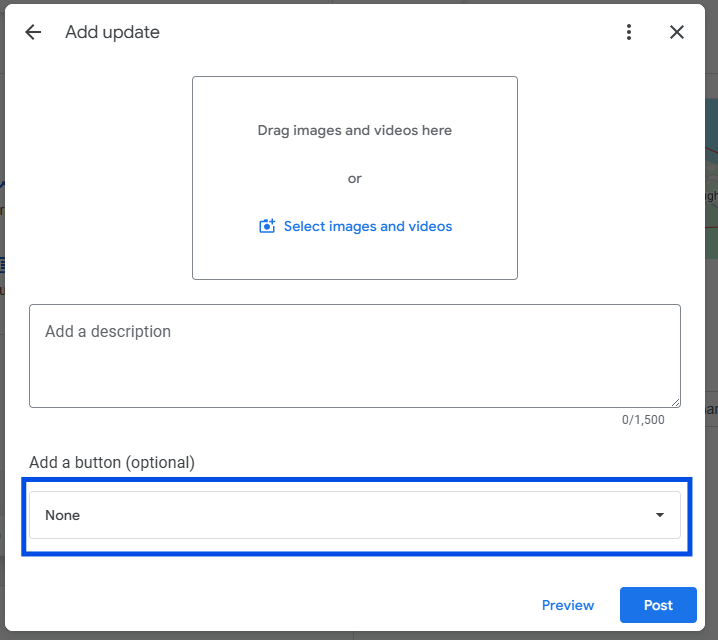
6. And a button (if it makes sense to) CTA like “Call now”, “Book online”, or “Learn more” and link it to your site or contact form, or special offer.
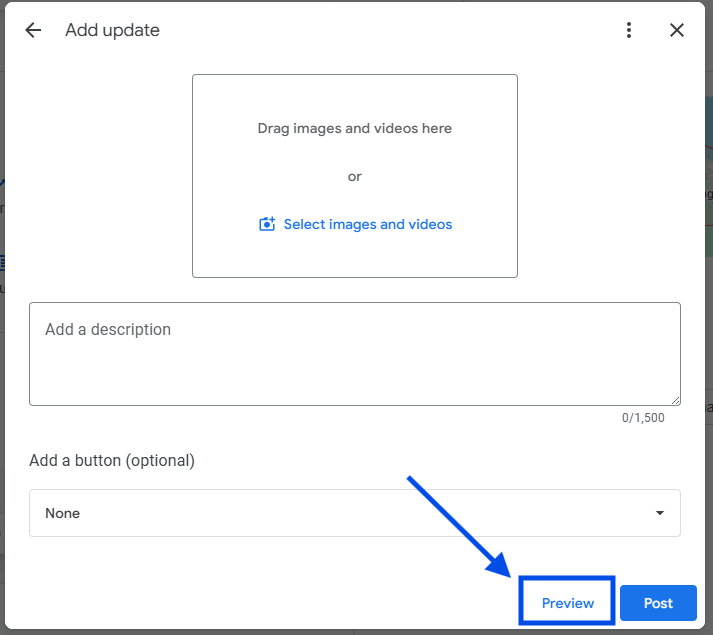
7. Preview your post by clicking the “Preview” button to make sure everything looks right.
8. Sorted? Hit Publish!
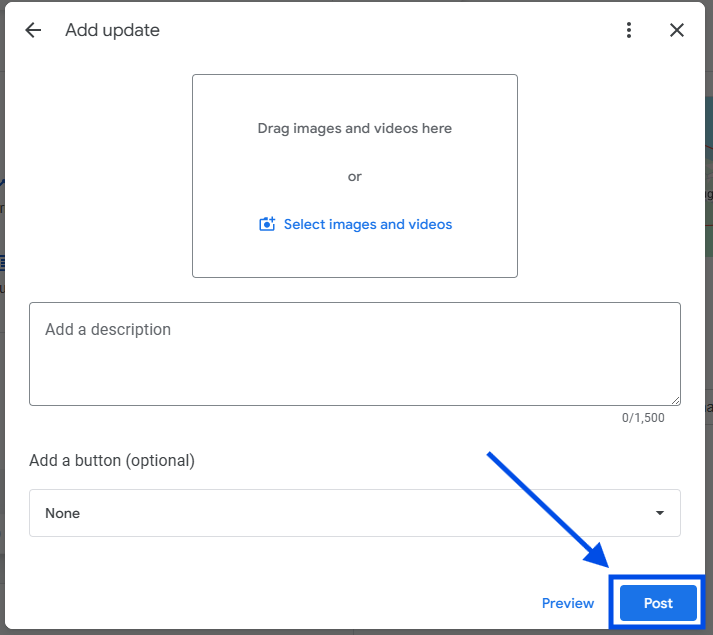
Your post should appear on your GBP immediately.
Google archives posts after six months unless you set a date range (offers and events have their own dates).
Your newest posts are the ones people see first, so keep them fresh; make sure to add the crucial content, especially keywords, at the start of the post description as only 75-100 characters show up in the GBP preview.
Aim to post once a week minimum to stay looking sharp and active.
Respond to ALL of Your Reviews
Reviews currently one of the biggest ranking factors for your GBP.
On top of that, Google sees a business replying to reviews and thinks: “Yep, these lot are real, active, and care about their customers.” That means more trust… and more visibility in the Map Pack.
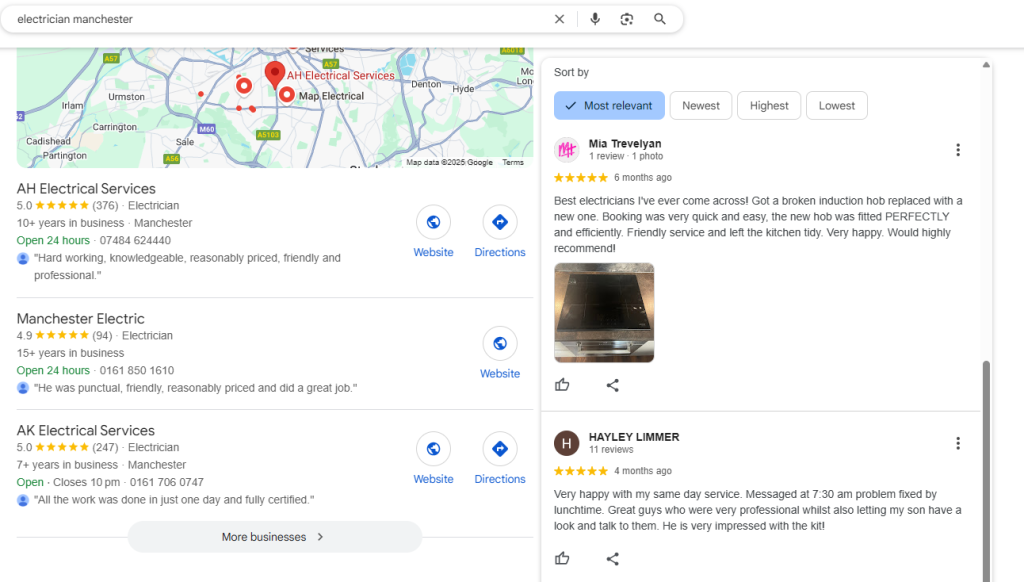
But beyond that? Reviews are straight-up sales tools.
People read them. People believe them. And your replies can either build trust or blow it.
Here’s how to nail it:
How to Reply to 5-Star Reviews (Without Sounding Like a Robot)
Don’t just say “Thanks!” and call it a day. Use it as a chance to:
- Show off the service you provided
- Mention the customer’s name (adds a personal touch)
- Drop your service area or the type of job
Example:
“Thanks so much, Dave! Glad we could sort your fuse box issue in Manchester, appreciate you taking the time to leave a review. Shout if you ever need anything else!”
That reply just dropped a service, a location, and gratitude, all in a few seconds. That’s how you make Google and future customers happy.
How to Handle Bad Reviews (Without Losing Your Head)
We’ve all had dodgy reviews, some fair, some not.
Here’s the rule:
Don’t get defensive. Ever. Stay calm, stay pro, and don’t argue.
Template to tweak:
“Hi Sarah, sorry to hear this. That’s not the level of service we aim to deliver. We’d love to chat and make this right. Please give us a call on our usual number and we’ll sort it.”
This does three things:
- Acknowledges the issue (without agreeing or blaming)
- Moves the convo offline
- Shows future customers you’re responsive and fair
And yes, you must reply to every review.
It takes 30 seconds.
Set a reminder once a week and bang them out.
Questions and Answers (Being Replaced by Google’s Ask Button)
This one has changed. Google switched off its Q&A API on 3 November 2025, and from December 2025 it started replacing the public Questions and Answers section on Maps and Search with an AI-powered Ask button, so you may not see a Q&A box on your profile any more.
It used to let people ask your business questions directly from your profile, and you (or anyone else, for that matter) could answer them.
Now the Ask button answers questions itself, drawing on what Google already knows about your business, such as your profile, your reviews and your website, so a complete profile gives it better material to work with.
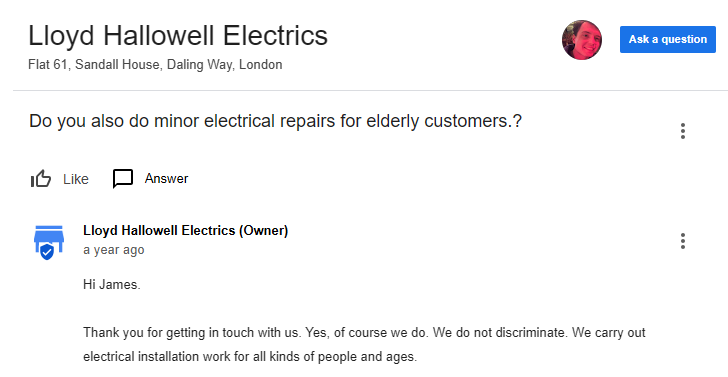
So the old trick of asking the questions yourself from a second Google account is out. What still works is making sure the answers are on your profile and your website: your services, hours, areas covered and a decent description, so anything answering on your behalf has the right information.
These are the questions customers genuinely ask electricians, so check your profile and website answer every one of them:
- “Do you offer 24/7 emergency callouts?”
- “Can I get an EICR certificate for my rental?”
- “How fast can you attend a power outage in your area?”
- “Are you Part P registered?”
Keep your answers short, helpful, and clear. Bonus points if you naturally include keywords and local areas.
Add Highlights & Attributes That Make You Stand Out
This is where you tell Google (and customers) the little extras that make your business unique.
These “highlights” or “attributes” show up as icons or tags in your profile.
Here’s what they look like on a live listing:
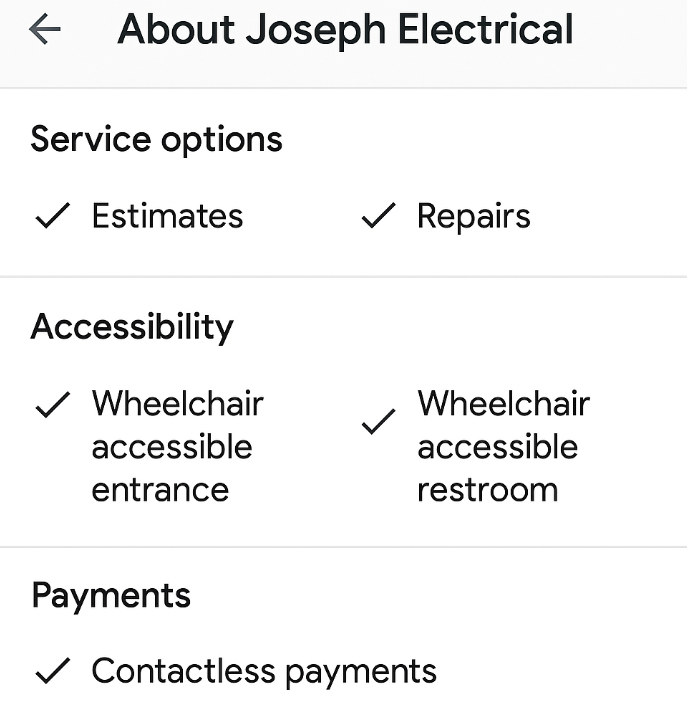
While they seem small and insignificant, and for the most part for an electrical business, they are, they do influence buying decisions and help your listing show up when people search for specific features.
Heres how to add them:
Head to your Google Business Profile while logged into your account; search your business on Google.
Click “Edit Profile”
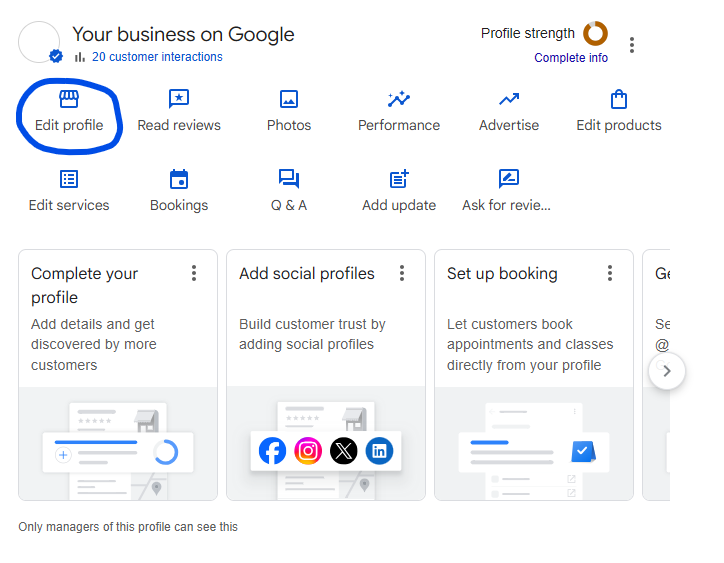
Click the “More” tab
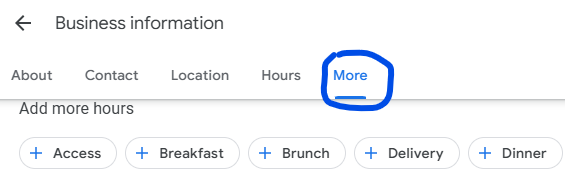
You’ll see a few options; you may have more or less, depending on the current state of your profile:
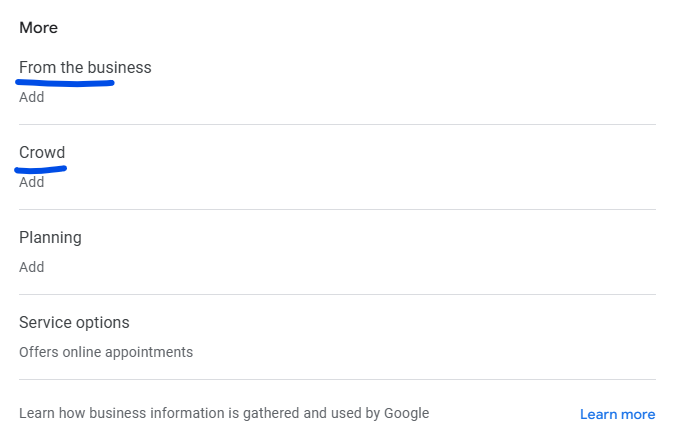
Click into each, make the changes, and don’t forget to save
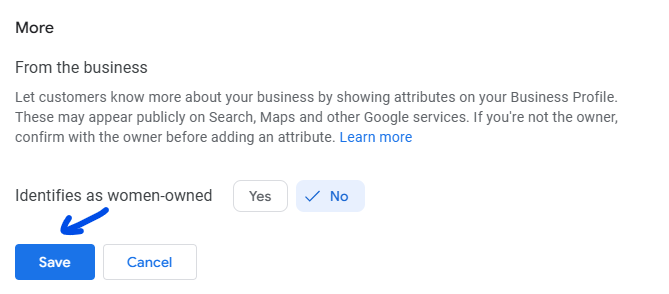
Sorted! It can take anywhere from an hour to 10 days for the changes to appear live on your profile.
Give it a few weeks, then check what’s actually working with my guide to tracking your GBP success.
Is a Google Business Profile a ranking factor for electricians?
Yes, a Google Business Profile is a ranking factor for electricians, because the Map Pack and Google Maps list Business Profiles, so an electrician without one has no listing to rank. What is on the profile then decides where it appears: Google ranks local results on relevance, distance and prominence, and reviews feed prominence. A profile doesn’t guarantee a top three spot, because distance from the searcher is out of the electrician’s control. Electrician SEO Pro treats a complete, accurate profile as the starting point of local SEO for electricians.
Google sets this out itself in its guide to improving local ranking. Relevance is how well your profile matches the search, distance is how far you are from the person searching, and prominence is how well known you are, which includes how many reviews you have.
Here’s how that splits for an electrician:
- Relevance (you control it): your Electrician category, your list of services and your description.
- Distance (you mostly don’t): it’s about where you are compared with the person searching, so there’s no trick to it.
- Prominence (you can build it): a steady stream of reviews, photos and a strong website. My local SEO guide for electricians covers the rest.
The honest limit: you can’t fix distance. If a competitor is simply closer to the customer, you have to beat them on relevance and prominence, and nobody can promise you the top three.
Reviews feed prominence, so how do you get more of them?
How do electricians get more Google reviews?
Electricians get more Google reviews by asking every customer as soon as the job is finished, while they’re happy with the work, and by sending a direct link to the review form so it takes seconds to complete. Replying to every review helps too. Electrician SEO Pro’s rule is to ask everyone, never offer a discount or freebie in return, and keep asking steadily rather than in one big burst.
Most electricians don’t get reviews because they simply don’t ask. The easy way:
- Ask on the day, when the customer has just seen the finished work and you’re still chatting.
- Send the review link by text or WhatsApp. In your Business Profile, look for the option to get or ask for reviews and copy the link.
- Nudge once if they forget. Once.
Offering a discount or a freebie in exchange for a review is treated as fake engagement, and Google’s tips on getting more reviews are clear that it’s prohibited. It’s not worth risking your profile. Review request templates and the QR code idea are in my guide to Google reviews for electricians.
Once the reviews start coming in, what does looking after the profile involve?
What should an electrician do each week to look after their Google Business Profile?
An electrician’s weekly Google Business Profile routine is short: reply to every new review, post at least one update, add photos of recent jobs and check that the opening hours and services are still right. Keeping the profile active shows customers, and Google, that the business is trading and cares. Electrician SEO Pro’s rule is little and often, because a profile left alone for months looks neglected.
Pick a day, put a reminder in your phone and do the lot in one sitting:
- Reviews: reply to every one, the good and the awkward. It takes 30 seconds each.
- Posts: one update, with the useful bit first, like “Just finished a fuse board upgrade in Redcar”. Google archives posts after six months unless they have a date range, so fresh ones keep the profile looking alive.
- Photos: whatever you snapped on recent jobs, such as before and afters, the van or the finished board.
- Details: opening hours, services and anything that has changed.
A weekly routine won’t beat a competitor with far more reviews on its own, but it stops you handing them an easy win. Give it a few weeks, then check what’s working with my guide to tracking your GBP success.
Do that and the rest of the job is done.
All Done! Go Dominate The GBP Map Pack
You’ve now got everything you need to properly set up, optimise, and run your Google Business Profile so you can dominate and become THE electrician in your service area.
And yeah, it might seem like a bit of admin, but trust me: this stuff directly impacts how often you show up in local search so you can get more jobs.
All the work is going to be worth it.
And remember, your profile is only one piece of the puzzle. The rest of the picture is in my guide to local SEO for electricians.
What are you waiting for, go dominate your local markets with electrician SEO.